
Making your website accessible is one of the best ways to ensure every visitor has a great experience. When you build a website, it is easy to assume everyone interacts with it the same way you do. However, millions of people use assistive technologies, like screen readers or keyboard-only navigation, to browse the web. Designing your site with these users in mind is not just a nice thing to do; it is a foundational part of running a modern, successful business online.
By focusing on web accessibility best practices, you open your virtual doors to a massive audience that might otherwise struggle to use your site. This inclusive approach directly aligns with major accessibility guidelines and provides a seamless browsing experience for everyone. In this WordPress accessibility guide, you will learn practical, straightforward steps to evaluate your current website and implement meaningful improvements that benefit all users.
Table of Contents
What Does ADA Compliance Mean for Websites?
The Americans with Disabilities Act, commonly known as the ADA, is a civil rights law that prohibits discrimination against individuals with disabilities. While it was originally written before the internet became central to daily life, courts now widely apply it to websites. Essentially, your website is viewed as a place of public accommodation, meaning it needs to be accessible to everyone, regardless of their physical or cognitive abilities.
To understand what accessibility looks like in practice, the industry looks to the Web Content Accessibility Guidelines, or WCAG. These are the international standards developed by the World Wide Web Consortium to ensure digital content is usable for all. WCAG is broken down into three levels of conformance: A, AA, and AAA. Most organizations aim for Level AA, which covers the most common barriers users face online.
It is important to remember that achieving ADA compliance for websites is not a one-time checkbox or a badge you buy. Instead, accessibility is an ongoing process of monitoring and updating your site as you add new content. Taking the time to understand these WCAG standards WordPress site owners need to follow helps you create a reliable, long-term strategy for digital inclusion.
Why Accessibility Matters Beyond Compliance
When you improve your website’s accessibility, you are doing much more than just meeting official standards. First and foremost, you are drastically improving the overall user experience for every single visitor. Features that help users with disabilities, such as clear layouts and readable text, also make your site easier to use for tired users, older adults, or people browsing in low-light environments.
Investing in accessibility also expands your audience reach significantly. When a website is easy to navigate, visitors stay longer, read more content, and are more likely to fill out forms or purchase products. This boost in engagement sends positive signals to search engines. In fact, many accessibility practices closely align with search engine optimization, helping your site rank better in search results.
Note: A clean heading structure and descriptive text help search engines crawl and understand your content more efficiently, proving that accessibility and SEO go hand in hand.
Furthermore, accessible websites perform beautifully on mobile devices. Features like large touch targets and scalable text ensure mobile users do not get frustrated while navigating your pages on smaller screens. Finally, prioritizing accessibility builds a stronger, more empathetic brand reputation. It shows your community that you care about inclusivity and value every customer who visits your online space.
10 Essential Accessibility Improvements for WordPress
1. Add Proper Image Alt Text
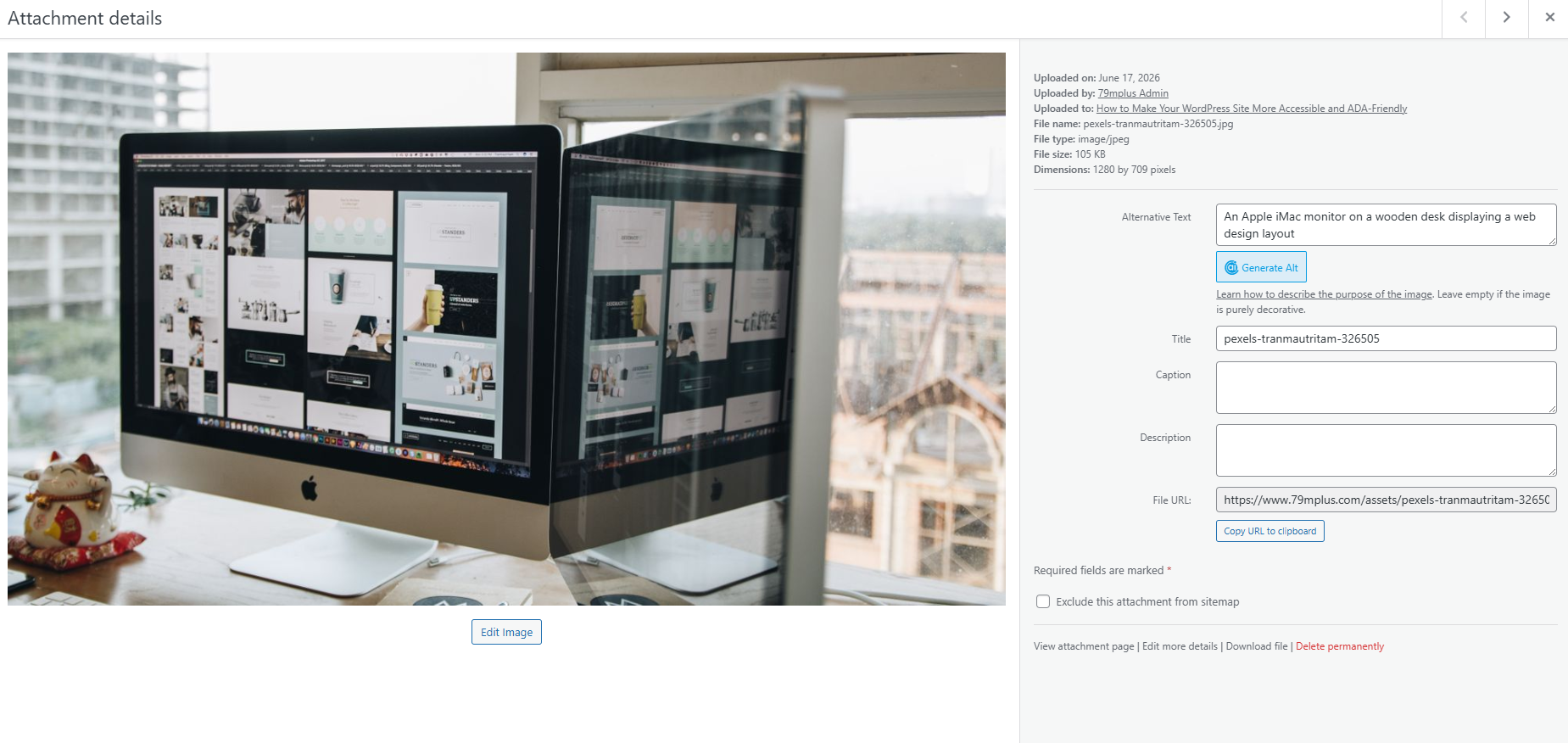
Alternative text, or alt text, is a short description embedded in an image’s HTML code. It describes what the image shows for users who cannot see it.
Screen readers read this text aloud to visually impaired visitors. If an image fails to load, the alt text appears in its place, ensuring no one misses out on context.
To add alt text in WordPress, open your Media Library, click on an image, and fill out the “Alternative Text” field. Keep descriptions concise and specific to the image content.
A common mistake is using alt text for decorative elements like background shapes or lines. Another frequent error is stuffing keywords into the alt text to boost SEO, which ruins the experience for screen reader users.
2. Improve Color Contrast
Color contrast refers to the difference in brightness between the text on your website and the background it sits against.
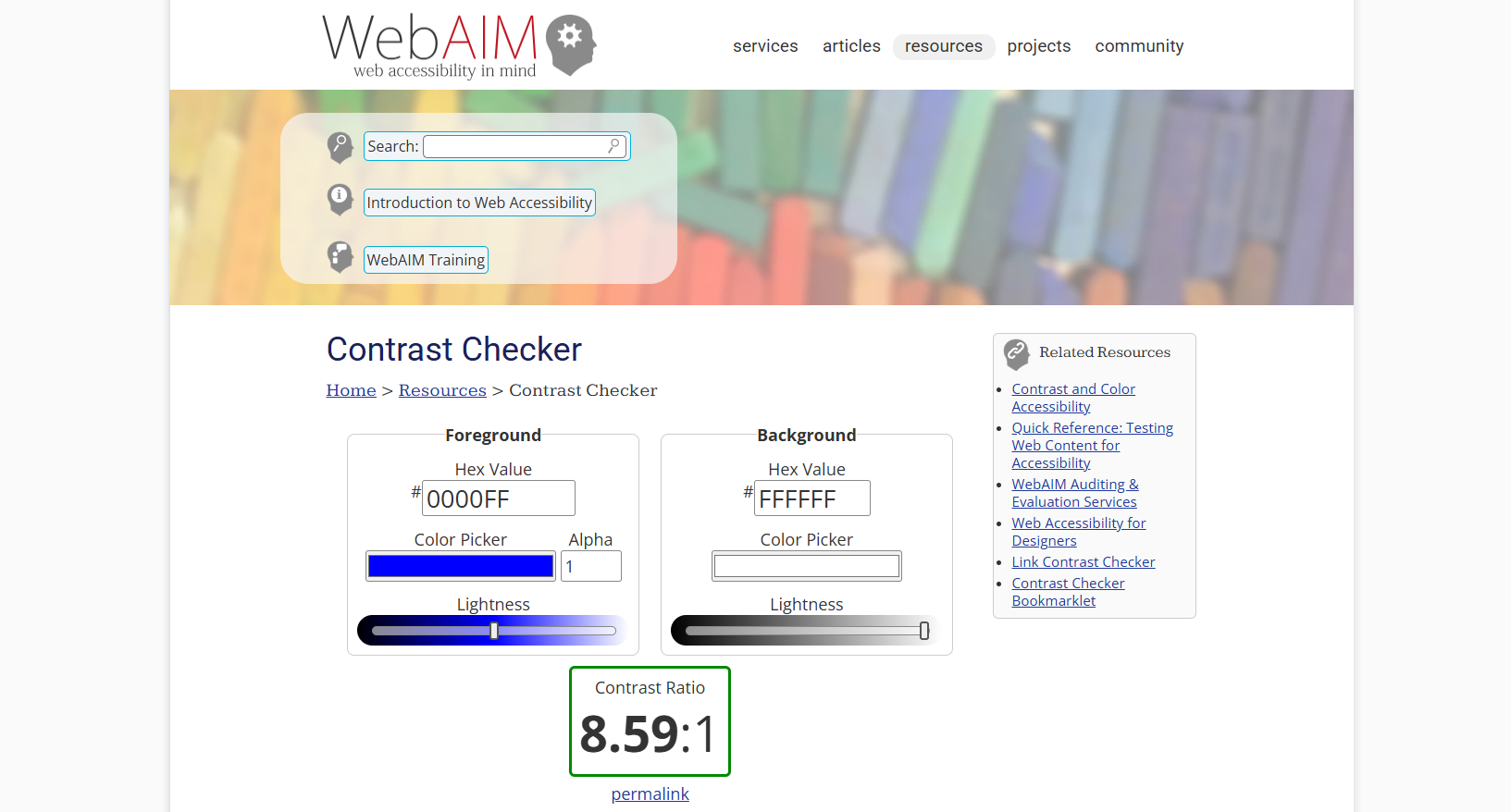
High contrast ensures that text is readable for individuals with low vision, color blindness, or anyone viewing your website on a phone outdoors in bright sunlight.
You can check your colors using free online contrast tools. If your theme features light gray text on a white background, update your theme customization settings to use a darker text color instead.
A common mistake is picking colors based purely on brand aesthetics without testing how readable they are. Avoid placing bright text on top of busy background images, as this makes text incredibly difficult to read.
3. Use Proper Heading Structure
Heading structure involves organizing your content using HTML heading tags from <h1> to <h6> in a logical, numerical order.
Proper headings act as a roadmap for your content. Screen reader users often jump from heading to heading to skim a page and find the information they need quickly.
Always use a single <h1> tag for your main page title. Use <h2> tags for major sections, and break those down further with <h3> tags, ensuring you never skip a heading level.
A common mistake is choosing a heading tag based on how large or bold the text looks visually rather than its structural meaning. Avoid jumping directly from an <h1> to an <h3> without an <h2> in between.
4. Enable Keyboard Navigation
Keyboard navigation allows visitors to browse your entire website using only the Tab key, Enter key, and arrow keys on their keyboard.
Many users with motor disabilities cannot use a standard mouse. They rely entirely on keyboards or assistive switches to click links, open menus, and interact with your site.
Test your site by pressing the Tab key to see if you can reach every link. Ensure your theme naturally includes a visible “focus outline” box around the items you select.
A common mistake is using custom code to remove the visual focus outline because a designer thinks it looks untidy. This leaves keyboard users completely blind to where they are on the page.
5. Improve Form Accessibility
Accessible forms feature clear, permanent labels, helpful error messages, and logical layouts that guide users through inputting information.
Forms are critical for conversions, but they can be impossible to complete if a user cannot tell which text box corresponds to which question.
Use accessible form plugins that connect labels to input boxes using proper HTML code. Ensure that error messages clearly explain what went wrong and how to fix it.
A common mistake is relying on temporary placeholder text inside the form field instead of a permanent label. Once a user clicks the box, the text disappears, causing confusion about what to type.
6. Add Accessible Navigation Menus
Accessible navigation menus can be opened, closed, and navigated using both a mouse and a keyboard, without trapping the user in a loop.
Menus are the primary way users find content. Dropdown menus that only open when a mouse hovers over them are completely broken for keyboard and screen reader users.
Choose a well-coded WordPress theme that explicitly supports keyboard accessibility for dropdown menus. You can also utilize dedicated accessibility plugins to patch broken menus.
A common mistake is building complex, multi-level dropdown menus that require precise mouse movements to stay open. Another error is neglecting to give mobile hamburger menus a clear text label.
7. Provide Captions for Videos
Video captions are text transcripts synchronized with the audio track of a video, appearing on-screen as the video plays.
Captions are essential for deaf or hard-of-hearing users. They also help people watching your videos in public spaces without headphones or in loud environments.
Host your videos on platforms like YouTube or Vimeo, which offer excellent built-in captioning tools. Review and edit the automatically generated captions to ensure complete accuracy.
A common mistake is relying entirely on unedited automated captions, which frequently misinterpret names, technical terms, and brands. Avoid embedding videos that play sound automatically when a page loads.
8. Use Descriptive Link Text
Descriptive link text clearly explains where a link will take the reader, even when the link text is read completely out of context.
Screen readers can pull a list of all links on a page. If every link says the exact same thing, the user has no idea where those links lead.
Instead of writing “click here” or “read more,” write descriptive phrases. For example, use text like “explore our WordPress maintenance guide” to provide clear, helpful context for the link.
A common mistake is using the full, raw URL as the link text, which is incredibly tedious for a screen reader to read aloud character by character. Avoid generic phrases that provide zero clues about the destination.
9. Improve Mobile Accessibility
Mobile accessibility focuses on making your website easy to read and use on smartphones, tablets, and other small-screen devices.
Many people with disabilities use mobile devices because touch screens and built-in voice controls offer comfortable, native accessibility features.
Ensure all buttons are large enough to be tapped easily without accidentally hitting a neighboring link. Check that your text size remains comfortable to read on small screens without zooming.
A common mistake is disabling the user’s ability to pinch and zoom in on your mobile layout. This traps users with low vision who need to enlarge text to read it comfortably.
10. Run Regular Accessibility Audits
An accessibility audit is a comprehensive review of your website to identify and document any existing barriers to access.
Websites change constantly as you add blog posts, launch products, and update plugins. Regular audits ensure that new updates do not accidentally break your accessibility setup.
Use a combination of automated scanning tools and manual testing to check your pages. Schedule these reviews quarterly or whenever you make major design changes to your site.
A common mistake is assuming that your website is permanently accessible because you fixed it once a year ago. Another error is relying purely on automated tools without doing any manual testing.
Accessibility Plugins for WordPress
Using WordPress accessibility plugins can be an excellent way to identify errors and fix common design flaws. Here is a look at few popular options to help you choose the right fit for your website.
1. WP Accessibility
-
Purpose: This plugin addresses common accessibility issues directly within your WordPress theme without requiring you to write custom code.
-
Key Features: It adds skip links, forces clear focus outlines on interactive elements, removes target attributes from links, and strips redundant title tags.
-
Pricing: Completely free.
-
Best Use Case: Ideal for website owners using older or poorly coded themes who need quick, foundational fixes for keyboard navigation.
-
Limitations: It does not fix content-specific issues like missing image alt text or poorly written heading structures.
2. One Click Accessibility
-
Purpose: It adds an accessibility toolbar to your website, allowing visitors to customize the presentation of your content to fit their needs.
-
Key Features: Offers font resizing, high contrast modes, underline links, a legible font toggle, and a dark room mode.
-
Pricing: Free.
-
Best Use Case: Great for sites looking to offer immediate visual adjustments for users with low vision or color blindness.
-
Limitations: Toolbars do not make an underlying broken theme accessible; they only layer adjustments on top of the existing design.
How to Test Your WordPress Site for Accessibility
Testing your website is the only way to know if your accessibility efforts are working. A complete website accessibility audit uses a balanced combination of automated tools and human verification. Automated tools are fantastic for catching obvious errors quickly, but they cannot understand context, which is why manual testing is just as vital.
To begin, you can run your site through trusted automated testing tools. WAVE (Web Accessibility Evaluation Tool) and Google Lighthouse are excellent, free options that scan your pages and flag color contrast errors, missing alt text, and broken heading structures. These tools give you a clear baseline of what needs immediate attention.
Next, move on to manual keyboard testing. Unplug your mouse and try to navigate your entire website using only the Tab key to move forward and Shift + Tab to move backward. Can you open your menus, fill out your contact forms, and click on every link? If you get stuck or cannot see where you are on the screen, you have found a barrier that needs to be fixed.
Finally, try testing your site with a real screen reader. Windows users can download NVDA for free, while Mac users have VoiceOver built right into their operating systems. Turn the screen reader on, close your eyes, and try to navigate your homepage. Listening to how your site is read aloud will immediately highlight broken layouts, confusing links, and areas where your content layout needs a more logical flow.
Dedicated CTA Section — How 79mplus Can Help
Improving website accessibility can feel overwhelming, especially when balancing design, content creation, and technical code. You do not have to tackle it alone. Partnering with an expert team makes the process smooth, efficient, and highly effective.
At 79mplus, we act as your dedicated technical partner to transform your digital presence into an inclusive, user-friendly space. Our team brings deep experience in web development and UX design to help you identify and resolve barriers cleanly. We focus on structural fixes that improve user satisfaction and long-term site performance.
We support your business growth through a comprehensive suite of accessibility and development services:
-
Detailed Accessibility Audits: We thoroughly scan and manually test your site to uncover hidden usability issues.
-
Custom WordPress Development: We write clean, accessible source code tailored specifically to your business goals.
-
Theme and Plugin Customization: We modify your favorite themes and plugins to ensure they fully support keyboard navigation and assistive devices.
-
UX Improvements & Redesigns: We craft beautiful, highly functional websites that prioritize readability and intuitive navigation.
-
Ongoing Maintenance and Support: We monitor your website continuously, keeping your content accessible as your business grows.
Ready to provide a better browsing experience for all of your visitors? Contact 79mplus today to discuss our custom development services and take the first step toward a more inclusive website.
FAQ Section
What is ADA compliance for websites?
ADA compliance for websites refers to making digital content accessible to individuals with disabilities. While the law originally targeted physical spaces, courts apply it to websites to ensure everyone can access public information, products, and services equally.
Can WordPress websites be ADA compliant?
Yes, WordPress websites can be made highly accessible. Because WordPress allows you to customize your themes, plugins, and source code, you have full control over implementing accessibility best practices, clean navigation, and proper content structures.
Does accessibility improve SEO?
Absolutely. Many accessibility practices directly mirror search engine optimization guidelines. For example, providing descriptive alt text for images, maintaining a clean heading structure, and creating clear link text help search engine crawlers understand and rank your pages more effectively.
What accessibility plugins are best for WordPress?
Some of the most helpful options include WP Accessibility for quick theme fixes, and Accessibility Checker by Equalize Digital for scanning content in the block editor. Toolbars like One Click Accessibility also provide helpful visual adjustments for your visitors.
How often should accessibility audits be performed?
It is best to perform an accessibility audit at least once a year. However, if you run a large website, frequently add new content, or regularly install new plugins, scheduling quarterly or bi-annual audits ensures your site remains fully functional for everyone.
Conclusion
Creating an accessible website is a rewarding journey that directly benefits your audience and your business. It is important to remember that web accessibility is an ongoing process rather than a one-time project. As your business evolves, your website will naturally change, meaning that regular testing and mindful content creation are key to maintaining a welcoming digital environment.
Even small, incremental improvements can make a massive difference for a visitor relying on assistive technology. By fixing your heading structures, writing descriptive alt text, and ensuring your forms are easy to complete, you create a seamless user experience that reaches a wider audience. If you want to elevate your website’s usability, learning how to create a custom 404 page is another fantastic step toward a highly optimized user experience.
Prioritizing accessibility protects your brand reputation, boosts your search engine visibility, and ensures that no customer is left behind. If you are ready to enhance your website but need a technical hand, we are here to support you. Businesses looking for professional website improvements, comprehensive audits, or expert custom WordPress development can partner with 79mplus to build a better, more inclusive web presence today.