

Table of Contents
Introduction
Have you ever tried to upload a photo, video, or plugin to your WordPress site only to see an error message saying “the file exceeds the maximum upload size”? You’re not alone. This frustration stops thousands of WordPress users from sharing their content every day.
WordPress sets a default file upload limit to protect your server from becoming overloaded. Think of it like a safety mechanism—it prevents massive files from consuming too many resources and slowing down your site. However, this default limit often isn’t enough for photographers, videographers, or anyone working with media-heavy websites.
The good news? You can fix this. It doesn’t require coding knowledge or technical expertise. Whether you want to upload high-resolution images, large plugins, theme files, or video content, there are simple methods available to you.
In this guide, you’ll learn exactly how to check your current upload limit and discover six proven methods to increase it. Each method is explained in beginner-friendly language, and we’ll tell you which one works best for your situation. By the end, you’ll have the skills to upload files of any size—within reason.
Let’s get started.
What Causes Upload Size Limits in WordPress?
To understand how to fix this problem, it helps to know why the limit exists in the first place.
Hosting Provider Restrictions
Your web hosting company sets upload limits on your server. They do this to prevent one website from using too many resources and affecting other sites on the same server. Most shared hosting plans default to limits between 2 MB and 128 MB. If you’re on a budget hosting plan, your limit is probably on the lower end.
PHP Configuration Settings
PHP (the language WordPress runs on) has its own upload size rules. These are called upload_max_filesize and post_max_size. These settings work like a second layer of protection. Even if your hosting allows large files, PHP won’t let you upload something bigger than its configured limit.
Server Settings
Your web server (Apache or Nginx) can also enforce its own limits. These include execution time limits and memory limits. If a large file takes too long to upload, the server might stop the process before it finishes.
WordPress Default Behavior
WordPress itself doesn’t set an upload limit, but it reads the limits from your server and PHP configuration. WordPress displays whatever limit exists so you know what you’re working with. You can’t override server limits from inside WordPress—you have to change them at the source.
Understanding these layers helps you see why multiple methods exist to solve this problem. You might need to adjust PHP settings, use your hosting control panel, or contact your host directly.
How to Check Your Current Upload Limit
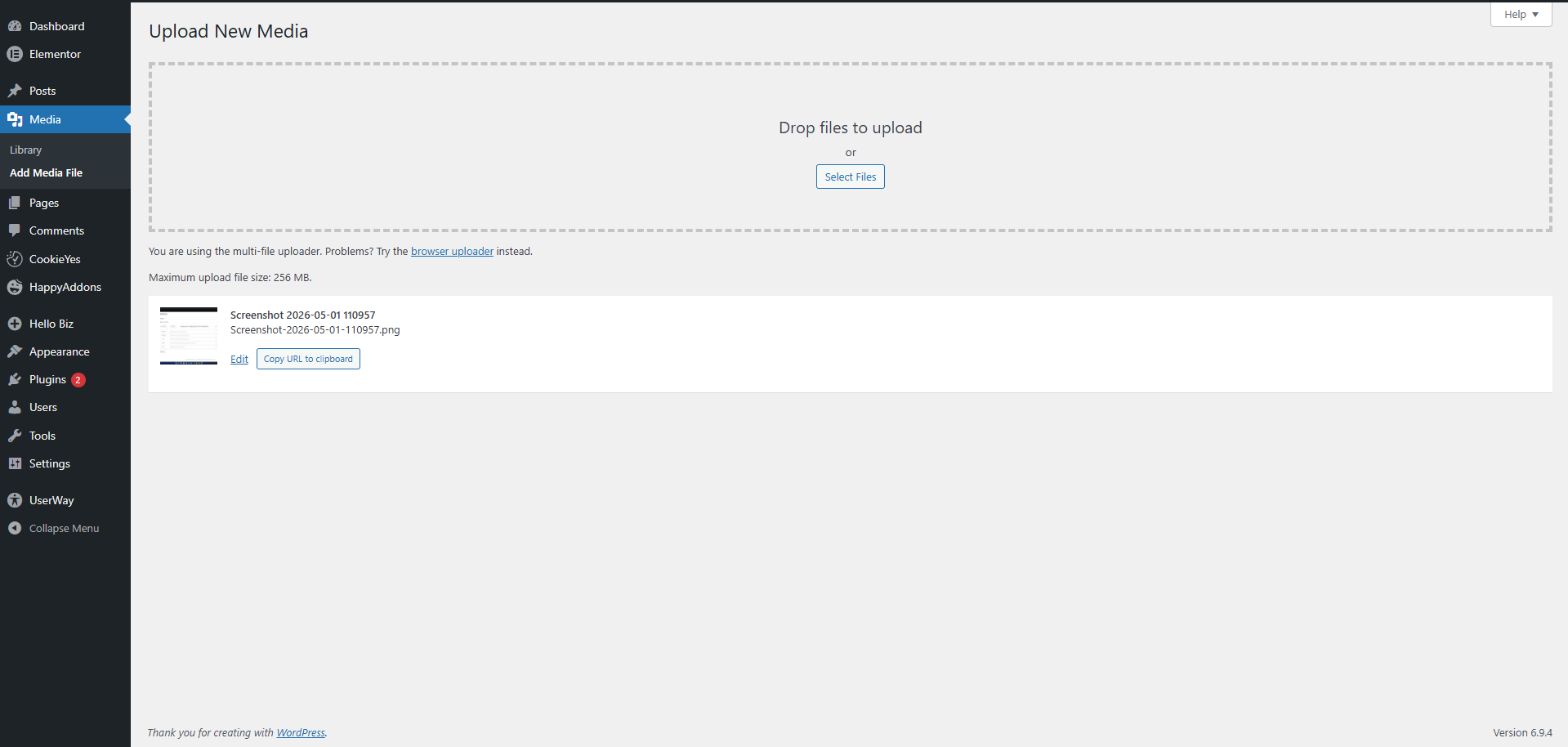
Before making any changes, you should know what your current limit is. This takes just a few seconds.
Method 1: Check in the Media Library
Log into your WordPress dashboard and go to Media > Add New. Look at the bottom of the upload page. You’ll see a line that says “Maximum upload file size:” followed by a number (like 128 MB). That’s your limit.
Method 2: Use the Site Health Tool
WordPress has a built-in diagnostic tool for this. Go to Tools > Site Health, then click the Info tab at the top. Scroll down to the “Media Handling” section. Look for “Max size of an uploaded file.” This shows your limit in a more technical format but gives you accurate information.
Both methods show the same limit—choose whichever is easier for you. Now that you know your starting point, let’s move to the methods for increasing it.
6 Ways to Increase Maximum File Upload Size in WordPress
Not all methods work with every hosting setup. We’ve arranged these by ease of use, starting with the simplest. Try them in order until you find one that works for you. Remember to back up your site before making any changes.
Method 1: Use Your Hosting Control Panel (cPanel)
When to use this: This is the easiest method if your hosting company uses cPanel. Most affordable shared hosting plans include it. If you log into your hosting account and see a dashboard with lots of options, you likely have cPanel.
Why it works: cPanel gives you access to PHP settings without touching any files. The changes take effect immediately, and there’s almost no risk of breaking anything.
Step-by-step:
- Log into your hosting control panel (cPanel).
- Look for “MultiPHP INI Editor” in the Software section. Click on it.
- Select your domain from the list.
- You’ll see two tabs: “Basic” and “Editor.” Click Basic (easier for beginners).
- Find these four settings and update them:
upload_max_filesize: Change to 256 (or higher if you want)post_max_size: Change to 256memory_limit: Change to 256max_execution_time: Change to 300
- Click Apply or Save Changes.
- Wait 30 seconds, then go back to your WordPress Media page to verify the new limit.
Important: The numbers represent megabytes (MB). A value of 256 means 256 MB maximum upload size. Don’t set it too high (anything over 512 MB is usually unnecessary and can cause problems).
Method 2: Edit the php.ini File
When to use this: Use this method if your hosting doesn’t offer cPanel or if the cPanel method didn’t work. This is the most direct way to change PHP settings.
Why it works: The php.ini file controls how PHP behaves on your server. By editing it directly, you’re telling PHP to accept larger files. This method works on nearly all hosting setups.
Step-by-step:
- Use an FTP client (like FileZilla) or your hosting File Manager to access your website files.
- Navigate to your site’s root directory (usually called
public_htmlorwww). - Look for a file named
php.ini. If you don’t see it, you’ll need to create one (instructions below). - If the file exists, open it in a text editor and find these lines:
upload_max_filesize = 64M
post_max_size = 64M
memory_limit = 128M
max_execution_time = 30
max_input_time = 60
Change the values to:
upload_max_filesize = 256M
post_max_size = 256M
memory_limit = 256M
max_execution_time = 300
max_input_time = 300
- Save the file.
- If you created a new
php.inifile, upload it to your root directory. - Wait a few minutes, then check your WordPress Media page to see if the limit increased.
Important: If you can’t find php.ini, create a new text file, add the code above, name it php.ini, and upload it to your root folder. Some hosting providers restrict this, so if it doesn’t work, try Method 3 instead.
Method 3: Edit the .htaccess File
When to use this: This method works on most shared hosting with Apache servers. It’s a good middle ground between easy and effective.
Why it works: The .htaccess file controls your web server’s behavior. Adding PHP directives here overrides default settings without needing to edit php.ini directly.
Step-by-step:
- Connect to your website via FTP or use your hosting File Manager.
- Navigate to your WordPress root directory.
- Look for a file named
.htaccess. If you don’t see it, enable “Show Hidden Files” in your file manager (check your hosting provider’s documentation for how). - Open
.htaccessin a text editor. - Add these lines near the top of the file (above any existing WordPress code):
php_value upload_max_filesize 256M
php_value post_max_size 256M
php_value memory_limit 256M
php_value max_execution_time 300
php_value max_input_time 300
- Save the file.
- Clear your browser cache (or use an incognito window) and check your WordPress Media page.
Important: Always back up .htaccess before editing it. This file controls important WordPress functionality. One small mistake could break your site. If something goes wrong, delete what you added or restore the backup.
Some hosts disable .htaccess editing for security reasons. If you get an error, use Method 4 instead.
Method 4: Add Code to wp-config.php
When to use this: This is a good option if the previous methods didn’t work. It’s a WordPress-specific approach and doesn’t risk breaking your .htaccess file.
Why it works: The wp-config.php file is WordPress’s main configuration file. Adding PHP directives here overrides server settings, but only for your WordPress installation.
Step-by-step:
- Connect via FTP or File Manager and navigate to your root directory.
- Find
wp-config.php. - Open it in a text editor.
- Find the line that says
/* That's all, stop editing! */(usually near the end). - Just above that line, add:
@ini_set( ‘upload_max_filesize’, ‘256M’ );
@ini_set( ‘post_max_size’, ‘256M’ );
@ini_set( ‘memory_limit’, ‘256M’ );
@ini_set( ‘max_execution_time’, 300 );
- Save the file.
- Check your WordPress Media page to see if the limit increased.
Important: This method has limitations. Some hosting providers ignore settings added this way, especially if server-level limits are lower. If your host restricts uploads to 128 MB at the server level, this method won’t override that restriction. In that case, contact your host (Method 6).
Method 5: Use a Plugin
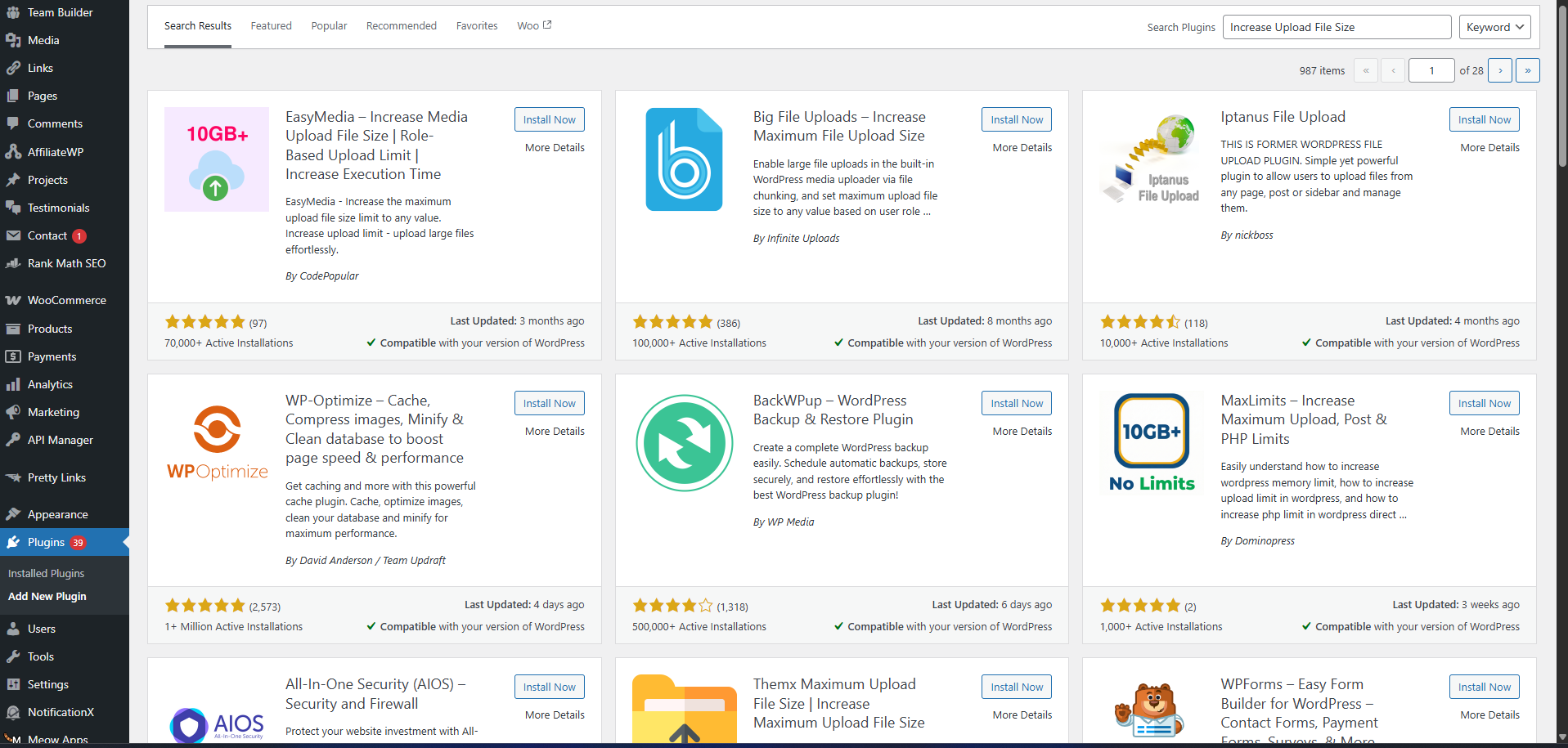
When to use this: If you’re uncomfortable editing files or don’t have access to cPanel, a plugin is your safest bet. Plugins automate the process and require zero coding knowledge.
Why it works: Upload limit plugins add the necessary PHP settings automatically. Some plugins also chunk large files into smaller pieces, allowing uploads even when server limits are very restrictive.
Step-by-step:
- Log into your WordPress dashboard.
- Go to Plugins > Add New.
- Search for “Increase Upload File Size” or “EasyMedia.”
- Click Install Now on the plugin you prefer (we recommend EasyMedia for its simple interface).
- Click Activate.
- Once activated, the plugin usually appears in your WordPress menu. Go to Media > EasyMedia (or similar, depending on the plugin).
- You’ll see your current limits displayed. Adjust the numbers to your desired upload size.
- Click Save or Apply.
- The plugin handles all the backend work. No file editing needed.
Important: Not all plugins work equally well. Some free plugins have limitations and may not work on heavily restricted hosting. The EasyMedia plugin is well-reviewed and works with most hosting providers, but read recent reviews before installing any plugin.
Method 6: Contact Your Hosting Provider
When to use this: If none of the above methods work, or if you’re not comfortable trying them, contact your host. This is also the best option if you suspect your host has hard server limits in place.
Why it works: Your hosting provider has direct access to server settings. They can increase limits at the server level, which overrides everything else. Most support teams can do this in minutes.
Step-by-step:
- Log into your hosting account dashboard.
- Look for “Contact Support,” “Live Chat,” or “Submit a Ticket.”
- Write a simple message:
“I need to increase the maximum file upload size on my WordPress site. Can you increase
upload_max_filesizeandpost_max_sizeto 256 MB?” - Send the message and wait for a response.
- Most hosts respond within a few minutes to a few hours.
- Once they confirm the change, verify it by checking your WordPress Media page.
Important: This method is free and completely safe. Your host does this regularly and won’t charge you. If they do charge, switch to a better host.
Read more about How to Fix “Update Failed” Error When Updating WordPress: 7 Proven Solutions (Complete Guide)
Best Practices and Important Tips
Once you’ve increased your upload limit, follow these guidelines to keep your site running smoothly.
Optimize Images Before Uploading
Large files slow down your website. Before uploading images, compress them. Use free tools like TinyPNG or TinyJPG to reduce file size by 50–70% without losing visible quality. This keeps your site fast while still allowing large, beautiful images.
Set Reasonable Upload Limits
You don’t need to allow 1 GB file uploads. Most photographers use 256 MB, and most small business sites do fine with 128 MB. Set your limit based on what you actually need, not the highest possible number.
Avoid Video Uploads to WordPress
Videos are huge files and slow down your site significantly. Instead, upload videos to YouTube or Vimeo and embed them in your posts. This saves space, speeds up your site, and gives you better video hosting infrastructure.
Keep Regular Backups
Whenever you increase upload limits or edit server files, always have a current backup. If something goes wrong, you can restore quickly. Most hosting companies include daily backups, but verify this with your host.
Monitor Server Resources
If you consistently upload very large files, watch your hosting account’s resource usage. Some hosts throttle performance if you use too many resources. If you’re regularly pushing limits, consider upgrading to a larger hosting plan.
Test Your Changes
After making any adjustments, test them. Try uploading a file that was previously blocked. If it works, great! If not, clear your browser cache and wait 5–10 minutes for changes to take effect.
Read more about 7 Proven Ways to Fix WordPress Login Redirect Loop Errors
How 79mplus Can Help With Your WordPress Backend Needs
If you’ve tried these methods and still face upload issues—or if you’re dealing with complex WordPress backend challenges—79mplus specializes in exactly this kind of problem.
What 79mplus Offers
WordPress Backend Customization Whether you need to fine-tune upload settings, adjust media handling, or configure complex file workflows, 79mplus handles it. We go beyond basic settings to build custom solutions tailored to your specific needs.
Server and Hosting Optimization Upload limits are just one piece of the puzzle. 79mplus optimizes your entire server configuration for WordPress—from PHP settings to caching to performance tuning. We work with your hosting provider to ensure your site runs at peak efficiency.
Custom Development Sometimes off-the-shelf solutions don’t work. 79mplus builds custom code to solve unique WordPress challenges. Need a custom upload handler? A specialized media library? We’ve built it.
Plugin Development If a plugin doesn’t exist for your needs, we create one. Custom plugins are built specifically for your site’s requirements, ensuring zero bloat and perfect integration.
Performance Optimization Large file uploads impact performance. 79mplus doesn’t just increase limits—we optimize your site to handle them efficiently. Faster uploads, better user experience, better SEO.
Technical Troubleshooting Stuck on an error that won’t go away? 79mplus specializes in solving WordPress problems that stump most developers. We dig deep to find the root cause and fix it permanently.
Why Choose 79mplus?
We understand WordPress inside and out. We’ve solved every variation of upload limit issues, from simple hosting restrictions to complex server configurations. When standard solutions fail, 79mplus delivers custom solutions that work.
Need help increasing your upload limit or optimizing your WordPress backend? Contact 79mplus today for a consultation. We’ll assess your current setup and recommend the best solution for your situation.
FAQs
Q: What’s the default maximum file upload size in WordPress?
A: WordPress itself doesn’t set a default limit. Instead, it reads the limit from your server and PHP configuration. Most hosting companies default to 64 MB or 128 MB, but some budget hosts start at 2 MB. Check your Media > Add New page to see your specific limit.
Q: Why can’t I upload large files even after increasing my limit?
A: Several things could cause this. First, clear your browser cache—sometimes old settings are cached. Second, wait a few minutes; server changes take time to propagate. Third, if you edited files manually, check for typos. Finally, your host may have a hard server limit lower than what you set. Contact your host to ask about their maximum allowed limit.
Q: Can plugins really increase upload limits?
A: Yes, but with a caveat. Plugins work best when your server restrictions aren’t too tight. If your host has a server-level limit of 50 MB, a plugin can’t push it to 500 MB. However, plugins like EasyMedia use clever chunking—breaking large files into smaller pieces—to work around restrictions. Check recent reviews to see how well a plugin performs on restricted hosting.
Q: Does increasing upload size affect my website’s speed?
A: Not directly. Increasing the limit doesn’t slow your site. However, uploading very large files can temporarily strain your server during the upload process. That’s why optimization matters—compress images and avoid uploading massive video files. Most hosting speeds are barely affected by reasonable upload limits (128 MB to 512 MB).
Q: What’s the maximum upload limit I should set?
A: For most sites, 256 MB is plenty. For media-heavy sites like photography portfolios, 512 MB works well. Don’t set limits above 1 GB unless you have specific reasons and powerful hosting. Very high limits can create security risks and waste server resources.
Q: Is it safe to edit php.ini and .htaccess files?
A: Yes, if you follow the instructions carefully. These files control important server settings, so mistakes can cause problems. Always back up the original file first. If something breaks, you can restore it. When in doubt, use cPanel or ask your host—it’s safer and quicker.
Conclusion
WordPress upload limits exist for good reasons, but they don’t have to block your workflow. You now know exactly how to check your current limit and have six proven methods to increase it. Whether you use your hosting control panel, edit configuration files, install a plugin, or ask your host for help, there’s a solution that works for your skill level and situation.
Start with the method that feels most comfortable to you. If it doesn’t work, try the next one. Most WordPress users find success on their first or second attempt.
Remember: backup your site before making changes, set reasonable limits based on your needs, and optimize your files to keep your site fast. These simple steps prevent most upload problems and keep your WordPress site running smoothly.
Ready for expert help? If you’ve hit a wall with upload limits or need advanced WordPress backend optimization, 79mplus is here to help. We specialize in solving complex WordPress issues, from server configuration to custom development. Let us handle the technical work while you focus on growing your business.
Contact 79mplus today for a free WordPress backend consultation.