
The barrier to entry for WordPress development has officially vanished. For years, creating a custom plugin meant mastering PHP, understanding the WordPress Plugin API, and spending hours debugging code. Today, the rise of the “vibe-coding” movement allows you to build functional plugins in minutes using plain language.
By combining Cursor (an AI-powered code editor) and WordPress Studio (a free local development environment), you can go from a simple idea to a working plugin in about 15 minutes—even with no prior coding experience. Let’s dive in how to Build Your First WordPress Plugin with AI
Table of Contents
The AI Toolkit: What You’ll Need
Before you begin, ensure you have the following tools installed on your machine. Both offer free tiers that are perfect for your first project:
- Cursor: A popular AI-powered coding editor built as a fork of VS Code. It features an “AI Agent” that can write, review, and edit code for you.
- WordPress Studio: A free, open-source local WordPress environment that runs on macOS, Windows, and Linux. It allows you to test plugins safely on your machine before they touch a live site.
Step 1: Set Up Your Development Sandbox
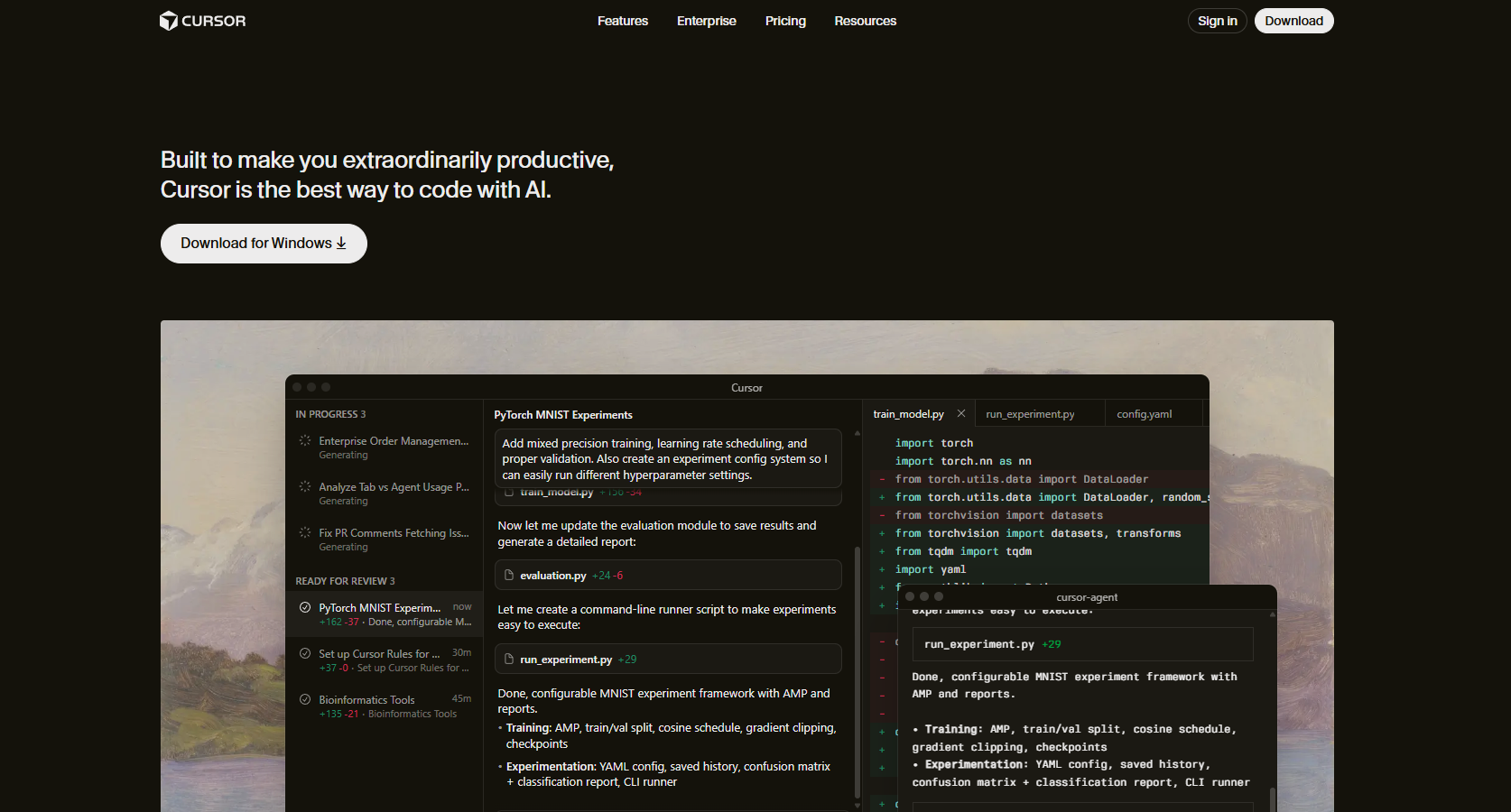
- Install Cursor: Download the installer for your OS and sign up for a free Hobby plan to access the AI Agent features.
- Install WordPress Studio: Run the installer and follow the on-screen instructions to set up your local hosting environment.
- Create a Local Site: Inside WordPress Studio, click “Add site”, then select “Build a new site” and “Empty site”.
- Identify Your Local Path: Once the site is created, click the Settings tab. Copy the Local Path value; this is the folder where your WordPress files are stored.
Step 2: Connect Cursor to WordPress
Open Cursor and click the “Open project” button. Navigate to the Local Path you identified in the previous step.
You will now see your WordPress file directory in one pane and the Agent chat window in the other. Because Cursor is built on VS Code, it will feel very familiar if you have used standard development tools before.
Step 3: Build Your Plugin with AI Prompts
Now comes the “vibe-coding.” Instead of writing PHP, you will prompt the AI agent to build the plugin for you.
Example Prompt:
“We are in the root of the WordPress site folder. Create a plugin that adds a Welcome dashboard widget. The widget should only show the heading ‘Welcome!'”.
The Cursor agent will analyze your environment, create the necessary folders, and generate the complete PHP plugin file. Once it’s done, click Review to see the code or Keep all to save the files to your project.
Step 4: Activate and Test
- Return to WordPress Studio and click WP Admin to open your local site’s dashboard.
- Navigate to Plugins, find your new AI-generated plugin, and click Activate.
- Check your dashboard to see your new “Welcome!” widget in action.
Step 5: Advanced Iteration and Customization
One of the greatest strengths of AI development is the ability to iterate quickly. You can ask the AI to add complex logic without needing to know the syntax.
For example, you could prompt:
“Update the plugin so that it displays a welcome message based on the user’s role. Describe what activities the user can do on the site”.
Connecting to WordPress.com via MCP
If you host sites on WordPress.com, you can use the Model Context Protocol (MCP) server to connect Cursor directly to your account. This allows the AI to check your live sites for custom roles—such as WooCommerce Customer or Shop Manager—ensuring your plugin works across different environments.
learn more about
Pro-Tips for building WordPress Plugin with AI
To get the most out of tools like Cursor and WordPress Studio, follow these best practices:
- Start Simple: Begin with basic widgets or tweaks and tackle complex projects as you gain confidence.
- Be Specific: Give the AI agent clear context about the features you want and the environment you are using.
- Break It Down: If you have a massive idea, break it into smaller steps with specific, individual prompts.
- Always Test Locally: Never deploy AI-generated code to a live production site without testing it in a sandbox like WordPress Studio first.
Ready to Start?
AI coding tools are democratizing the web, allowing anyone with an idea to become a creator. Whether you want to build a simple dashboard widget or a complex utility, the combination of Cursor and WordPress Studio is the fastest way to bring your vision to life.