
Modern frontend development moves fast, and it is easy to feel overwhelmed by the constant stream of new libraries and frameworks.
However, the secret to a successful career isn’t knowing every single tool that trends on social media. Instead, it is about mastering the right frontend developer tools that streamline your workflow and help you build reliable applications.
These tools are the foundation of professional development, used by teams at top tech companies to manage complex codebases.
As you start your journey, remember that you do not need to learn everything at once. Every senior developer you admire started with the basics and added to their toolkit over time.
This guide focuses on the essential frontend developer tools that provide the most value in a real-world production environment.
By focusing on these seven areas, you will build a solid foundation that makes you a valuable asset to any engineering team.
Let’s dive into the tools that will bridge the gap between being a student and being a professional developer.
Table of Contents
1. Visual Studio Code (VS Code)
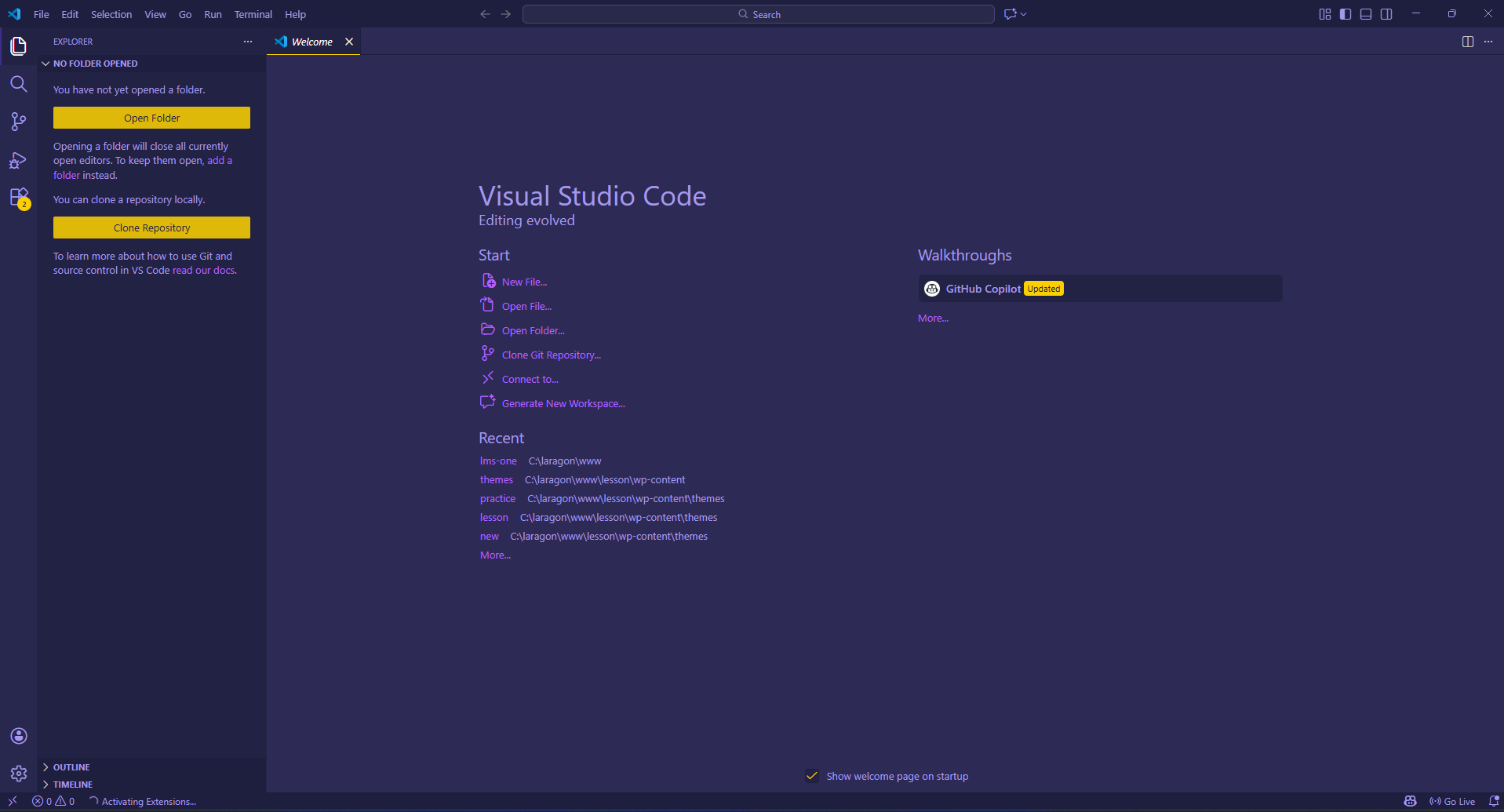
What the tool is Visual Studio Code, commonly called VS Code, is a lightweight but powerful code editor developed by Microsoft. It acts as the primary workspace where you will spend the majority of your day writing, debugging, and organizing your code.
Unlike a simple text editor, it is designed specifically to understand the structure of programming languages.
Why it matters for frontend developers A good editor does more than just display text; it helps you catch errors before you even run your code.
VS Code is the industry standard because it is highly customizable and has a massive ecosystem of extensions.
Mastering your editor allows you to automate repetitive tasks, which keeps your mind focused on solving logic problems rather than fighting with your interface.
Key features
-
IntelliSense: This provides smart completions based on variable types and function definitions, which helps you write code faster and with fewer typos.
-
Built-in Terminal: You can run command-line tools directly inside the editor, saving you from constantly switching between different windows.
-
Git Integration: It allows you to see code changes and manage versions of your project visually without leaving your workspace.
-
Extension Marketplace: You can add specific features for languages like React or Tailwind CSS to make the editor behave exactly how you need it to.
Real-world usage example In a typical project, you might use VS Code to open a folder containing hundreds of files. You would use the “Search Everywhere” feature to find a specific component, use the built-in debugger to step through a failing function, and then use the integrated terminal to push your finished work to a server.
Skill level & best use case This is a beginner-level tool that remains essential throughout your entire career. It is the very first thing you should install when setting up a new development environment.
2. Chrome DevTools
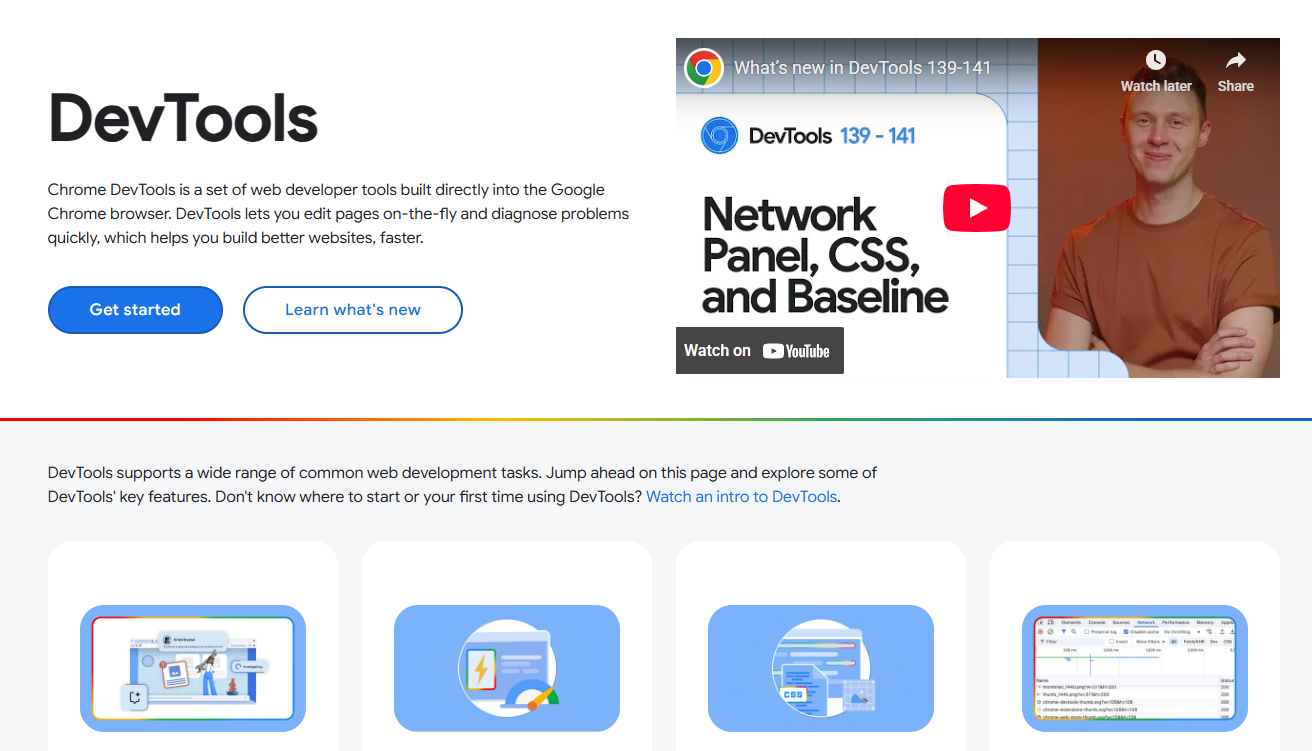
What the tool is Chrome DevTools is a set of web developer tools built directly into the Google Chrome browser. It allows you to look “under the hood” of any website to see its HTML, CSS, and JavaScript in real-time.
It acts like a diagnostic machine for websites, showing you exactly how the browser is interpreting your code.
Why it matters for frontend developers Building a website is only half the job; the other half is figuring out why things aren’t working as expected.
DevTools allows you to make temporary changes to a live site to test ideas instantly without reloading the page. It is the most effective way to debug layout issues,
check site speed, and monitor how data flows between your app and the internet.
Key features
-
Elements Panel: This lets you inspect the HTML and CSS of any part of a page and change styles on the fly to see how they look.
-
Console: This is where you can see error messages from your JavaScript and run small snippets of code to test logic.
-
Network Tab: This shows you every file and data request the site makes, helping you identify if a page is slow because of large images or failing API calls.
-
Device Toolbar: This allows you to simulate how your website looks on different mobile phones and tablets to ensure your design is responsive.
Real-world usage example If a button on your site isn’t changing color when clicked, you would right-click it and select “Inspect.” You can then use the Styles pane to see if another CSS rule is accidentally overriding your code or check the Console to see if a JavaScript error is preventing the click event from firing.
Skill level & best use case Every developer from beginner to expert needs this tool. It is essential during the “building” phase of a project to ensure layouts are pixel-perfect and functional.
3. Git and GitHub
What the tool is Git is a version control system that tracks every change you make to your code, while GitHub is a cloud-based platform that hosts those changes.
Think of it like a “save game” system for your project that allows you to go back to any previous version if you make a mistake.
It also serves as a collaboration hub where multiple people can work on the same project simultaneously.
Why it matters for frontend developers In a professional setting, you almost never work alone.
Git ensures that your changes don’t overwrite a teammate’s work. It also acts as a safety net; if you accidentally delete a critical file or break a feature, you can restore your project to a working state in seconds.
Having a GitHub profile is also the primary way developers share their work with the community and potential employers.
Key features
-
Branching: This allows you to create a separate copy of your code to experiment with new features without affecting the main, working version.
-
Commits: These are snapshots of your project at specific points in time, each with a message explaining what was changed.
-
Pull Requests: This is a process on GitHub where you ask teammates to review your code before it gets added to the main project.
-
Merge Conflict Resolution: Git provides tools to help you decide which code to keep when two people change the same line of a file.
Real-world usage example Imagine you are asked to add a new “Dark Mode” to a website. You would create a new branch called feature-dark-mode, write your code, and commit your changes. Once you are done, you push it to GitHub and open a Pull Request so your senior developer can check your work before it goes live.
Skill level & best use case Intermediate. While you should start using Git early on, it becomes essential the m
4. npm or pnpm (Package Managers)
What the tool is A package manager is a tool that automatically downloads and manages external libraries for your project.
Instead of manually searching the internet for a script and pasting it into your files, you use a package manager to fetch it from a central registry.
Node Package Manager (npm) is the default, while pnpm is a popular, faster alternative.
Why it matters for frontend developers Modern web development relies heavily on “standing on the shoulders of giants.
” You don’t need to write your own code for complex tasks like date formatting or animations when thousands of high-quality, pre-tested libraries are available.
A package manager keeps track of all these dependencies and ensures that everyone working on the project is using the exact same versions.
Key features
-
Dependency Management: It maintains a file called
package.jsonthat lists every library your project needs to run. -
Version Control: You can specify whether you want the latest version of a tool or a specific older version to avoid breaking your site.
-
Security Auditing: These tools can scan your project for known security vulnerabilities in the libraries you have downloaded.
-
Script Running: You can create custom commands to automate tasks like starting a local server or “cleaning” your code for production.
Real-world usage example If you want to add an image gallery to your site, you would run a command like npm install embla-carousel. The tool downloads the code and saves the reference. When a teammate clones your project later, they simply run npm install to get the exact same gallery code automatically.
Skill level & best use case Intermediate. You will need this as soon as you move beyond basic HTML/CSS files and start using frameworks or utility libraries.
oment you start working on a team or a project that lasts more than a few days.
5. Vite
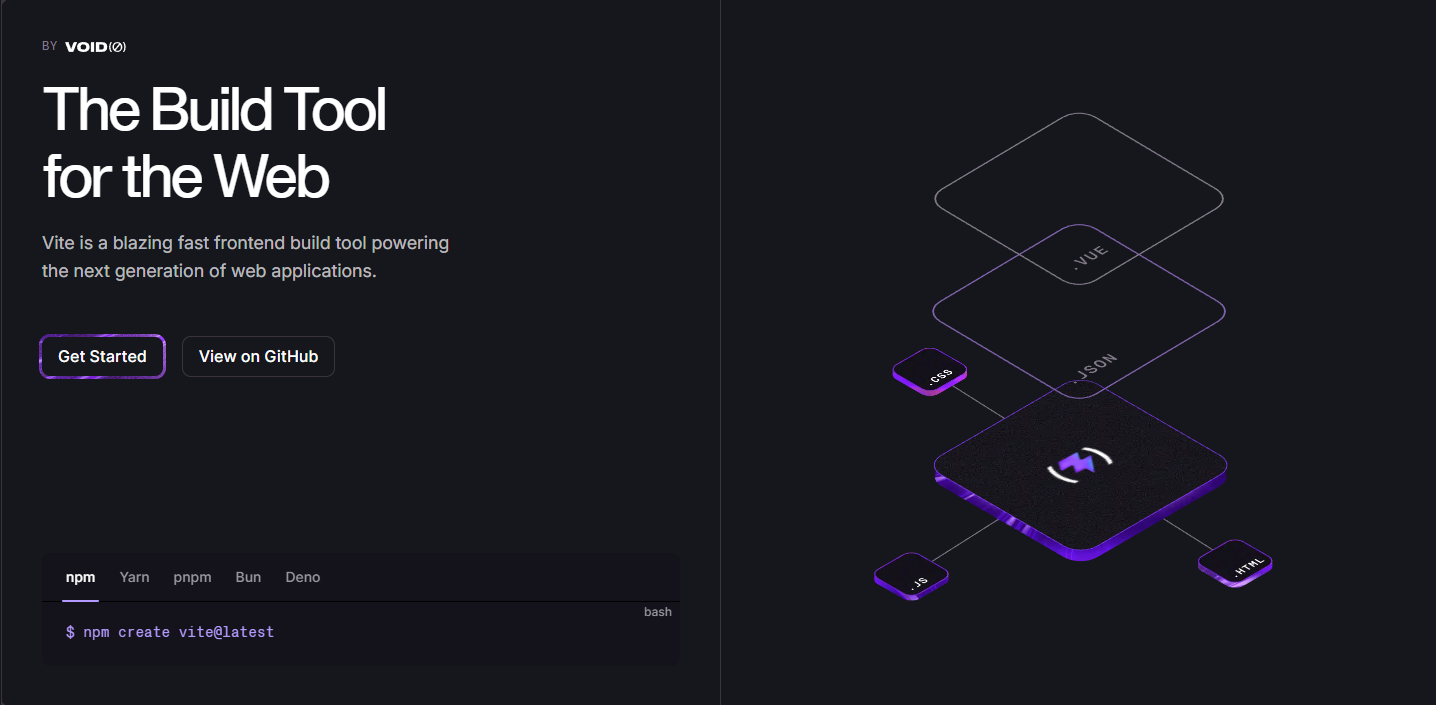
What the tool is Vite is a “build tool” that handles the heavy lifting of preparing your code for the browser.
When you write modern JavaScript or use special languages like TypeScript, the browser can’t always read them directly. Vite takes your source code, bundles it together,
and serves it to your browser in a way that is incredibly fast.
Why it matters for frontend developers In the past, developers had to wait several seconds for their changes to show up in the browser after saving a file.
Vite uses a technology called Hot Module Replacement (HMR) to update your site almost instantly.
This creates a much smoother “feedback loop,” allowing you to stay in the zone while you build and experiment.
Key features
-
Instant Server Start: It starts your local development environment nearly instantly, regardless of how large your project is.
-
Optimized Build: When you are ready to launch your site, Vite minifies your code to make the final files as small as possible for users.
-
Plugin System: It can be extended to support almost any framework, including React, Vue, or Svelte, with very little configuration.
-
CSS Handling: It automatically handles complex CSS tasks like prefixing for different browsers or using pre-processors like Sass.
Real-world usage example When starting a new project, you would run npm create vite@latest. This sets up a professional folder structure. As you write code, Vite keeps a local version of your site running; every time you hit “Save,” the browser updates the specific part you changed without a full page refresh.
Skill level & best use case Intermediate. It is the best use case for anyone building a modern web application that requires a framework or a local development server.
6. Tailwind CSS
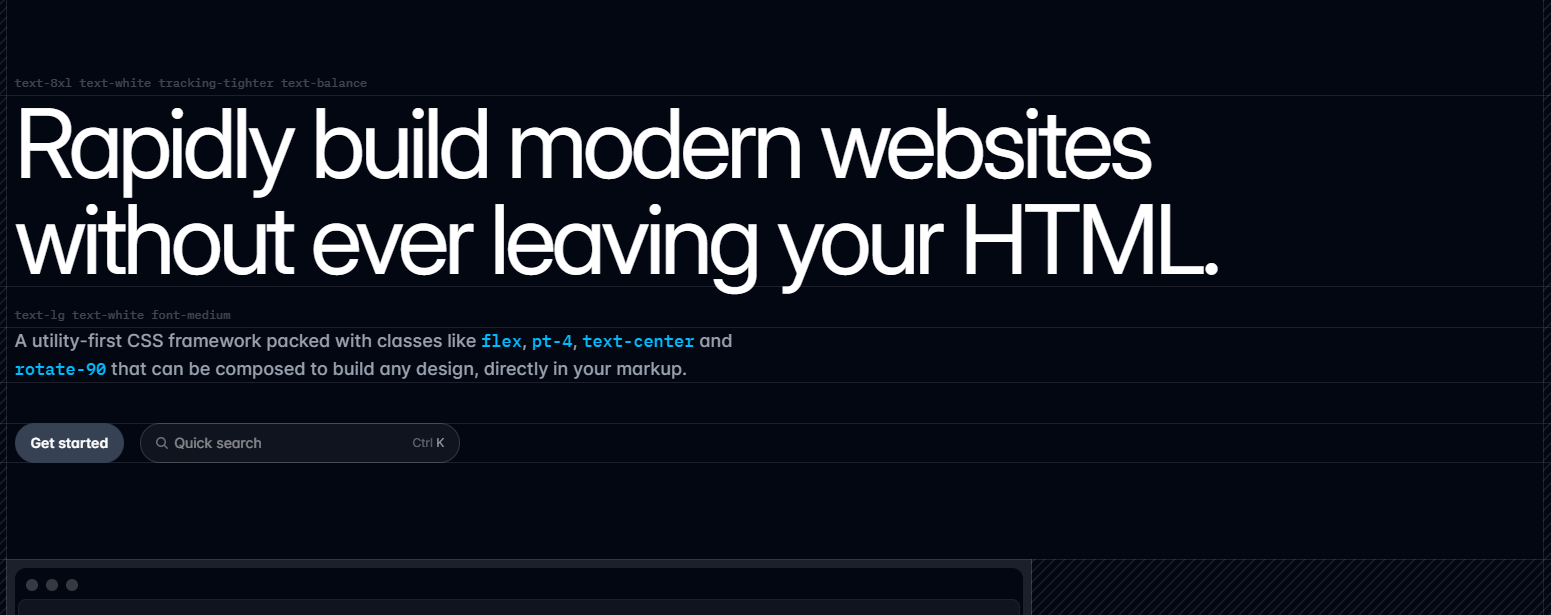
What the tool is Tailwind CSS is a “utility-first” CSS framework. Instead of writing separate CSS files with custom names like .btn-primary, you apply small,
pre-defined classes directly to your HTML elements. It provides a standardized system for spacing, colors, and typography.
Why it matters for frontend developers Naming things in CSS is one of the hardest parts of development.
Tailwind removes the need to invent class names and prevents your CSS files from growing uncontrollably.
It also enforces a consistent design system, so your margins and colors look uniform across the entire website without you having to remember specific hex codes or pixel values.
Key features
-
Utility Classes: You use classes like
flex,pt-4, andtext-blue-500to style elements directly in your markup. -
Responsive Modifiers: You can easily change styles for different screen sizes by adding prefixes like
md:orlg:to your classes. -
Hover and Focus States: It provides simple ways to handle interactive states like
hover:bg-red-500without writing extra CSS blocks. -
Purging: When you build your site for production, Tailwind automatically removes any classes you didn’t use, keeping your final file size tiny.
Real-world usage example To create a centered, blue button with rounded corners, you would simply write: <button class="bg-blue-500 rounded-lg p-4 text-white mx-auto">Click Me</button>. You don’t have to switch back and forth between an HTML file and a CSS file to see the result.
Skill level & best use case Beginner to Intermediate. It is best for developers who want to build custom designs quickly without getting bogged down in complex CSS architecture.
7. Postman or Bruno (API Clients)
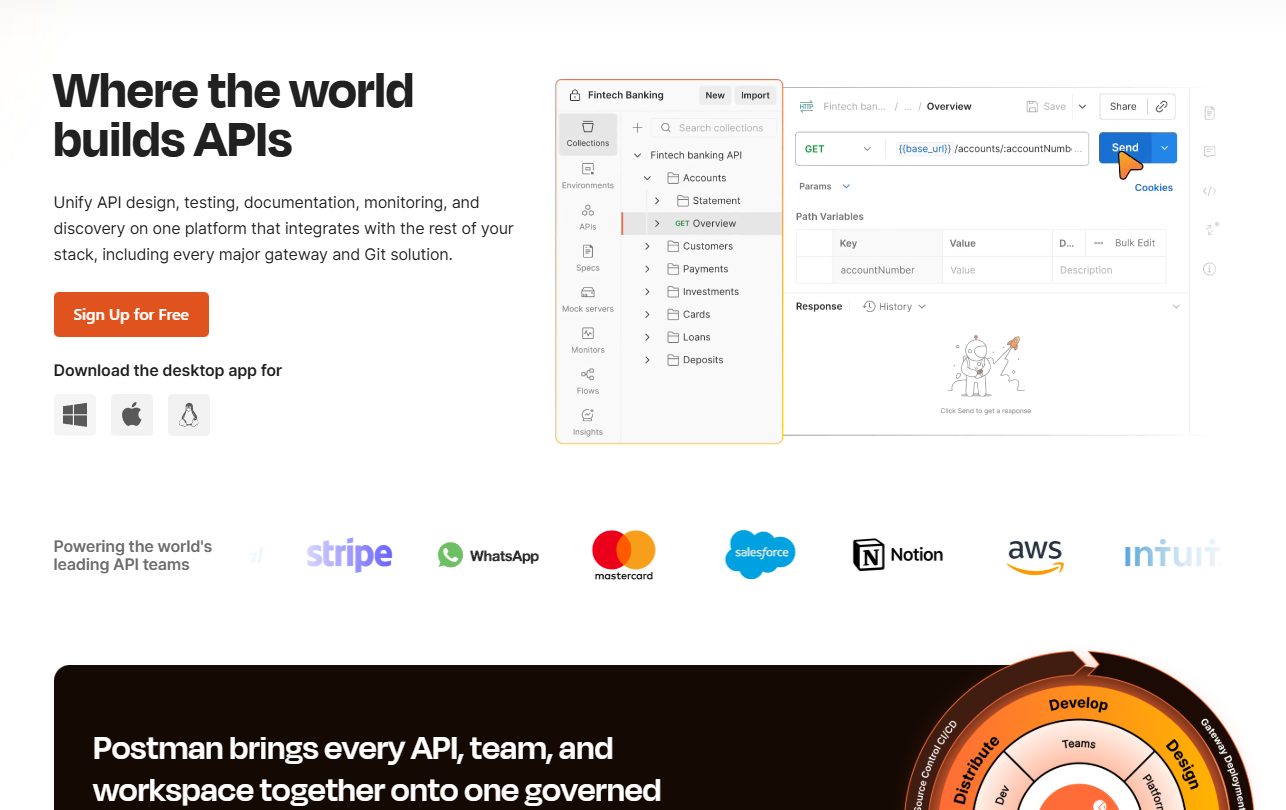
What the tool is An API client is a tool that allows you to test and interact with backend services without having to write any frontend code first.
Postman is the most well-known, while Bruno is a newer, lightweight alternative. They act as a “remote control” for the data that powers your application.
Why it matters for frontend developers Most modern websites get their data from an API (Application Programming Interface).
If a list of products isn’t showing up on your page, you need to know if the problem is in your code or if the backend server is broken. An API client lets you isolate the data layer,
so you can verify exactly what information the server is sending back before you try to display it.
Key features
-
Request Builder: You can easily send different types of requests (GET, POST, etc.) to a URL and see the data returned in a readable format.
-
Environment Variables: You can save different settings for “Development,” “Staging,” and “Production” to test your app in different environments.
-
History and Collections: You can save and organize your most-used API calls so you don’t have to re-type URLs or authentication keys.
-
Documentation: Many of these tools can automatically generate documentation from your saved requests to share with your team.
Real-world usage example Before building a “User Profile” page, you would use Postman to send a request to https://api.myapp.com/user/1. You check the response to see if it includes the user’s email and profile picture. Once you see the data is correct, you can confidently write the frontend code to display it.
Skill level & best use case Intermediate. This becomes essential as soon as you start working with dynamic data, databases, or third-party services like Stripe or Firebase.
How to Decide Which Tools to Learn First
It is tempting to try and learn all seven of these tools in a single weekend, but that usually leads to burnout. To stay focused, you should learn them in the order that matches the projects you are building.
Recommended Learning Order
-
VS Code: Get comfortable with your editor on day one.
-
Chrome DevTools: Learn to inspect and tweak CSS as you learn the basics of design.
-
Git/GitHub: Start versioning your code as soon as you have a project you care about.
-
Tailwind CSS: Use this to speed up your styling process once you understand basic CSS.
-
npm & Vite: Introduce these when you move from static sites to dynamic applications.
-
API Clients: Master these when you begin connecting your frontend to backend data.
Avoiding Tool Overwhelm
The goal of these tools is to make your life easier, not harder. If a tool feels like it is getting in the way, step back and focus on the fundamental skill it is meant to help with.
For example, make sure you understand CSS best practices article before relying entirely on Tailwind.
You can also follow a frontend developer learning roadmap to see how these tools fit into the bigger picture of your career.
FAQ
Do frontend developers really need so many tools?
While you can build a website with just a text editor and a browser, these tools are what allow you to work at a professional level. They help prevent bugs, speed up your development time, and allow you to collaborate with others. In a professional environment, these tools are considered the bare minimum.
Should beginners learn tools before frameworks?
It is usually best to learn the tools alongside your fundamentals. You don’t need to be an expert in Git to start learning React, but knowing how to use Chrome DevTools will make learning React much easier. Focus on the tool when it solves a specific problem you are facing.
How long does it take to master these tools?
You can learn the basics of any of these tools in an afternoon. However, true mastery comes from using them every day on real projects. Don’t worry about knowing every single hidden feature; focus on the 20% of the tool that you use 80% of the time.
Conclusion
Mastering the right tools is about more than just being fast; it’s about building confidence in your ability to solve problems.
By focusing on these seven essentials—VS Code, DevTools, Git, Package Managers, Vite, Tailwind, and API Clients—you are equipping yourself with the same toolkit used by senior engineers worldwide.
Don’t feel pressured to become an expert overnight. Take it one project at a time. Consistent practice is much more valuable than “tool hopping” every time a new library appears on social media. You have the roadmap; now it’s time to start building.