
How to Optimize WooCommerce Product Images in 2025 (Fastest Way
- Upload correctly sized images (no larger than 1200–1500px on the longest side)
- Convert all images to WebP or AVIF format
- Compress images to under 100 KB each using a plugin like ShortPixel or Imagify
- Enable native lazy loading + serve images from a CDN
Do these four things and your WooCommerce store will load 2–4× faster.
Table of Contents
Introduction
Page speed is everything in e-commerce. Google says 53% of mobile visitors leave if a page takes longer than 3 seconds to load. In WooCommerce stores, product images are usually the #1 reason for slow loading.
Unoptimized images can easily make your pages 5–10 MB heavy, killing conversions and hurting your Google rankings.
The good news? You can fix this in a weekend. This complete 2025 guide shows you exactly how to optimize WooCommerce product images for lightning-fast speed – step by step, beginner-friendly, and with the latest tools and formats.
Let’s dive in.

Why Image Optimization Matters for WooCommerce Speed
In most WooCommerce stores, large, unoptimized images are the #1 performance bottleneck. Ignoring them creates a cascade of problems that directly hurt your revenue.
When images aren’t optimized:
- Pages load slowly → visitors bounce before buying
- Core Web Vitals (LCP, CLS, etc.) tank → Google pushes you down the search rankings
- Mobile users on slow connections get frustrated and abandon carts
- You burn through hosting bandwidth and pay for data you didn’t need to serve
A single high-resolution product photo can easily exceed 2–3 MB. Compress and convert it properly, and you’re often down to under 200 KB, saving 500 KB to 2 MB per page view. With hundreds or thousands of daily visitors, those savings compound dramatically in load time, conversions, and hosting costs.
Bottom line: Optimizing your product images delivers the highest ROI of any speed improvement in WooCommerce. It’s low effort, costs almost nothing, and delivers immediate, measurable gains in performance, SEO, and sales. Do it first, everything else is secondary.
Recommended WooCommerce Product Image Sizes in 2025
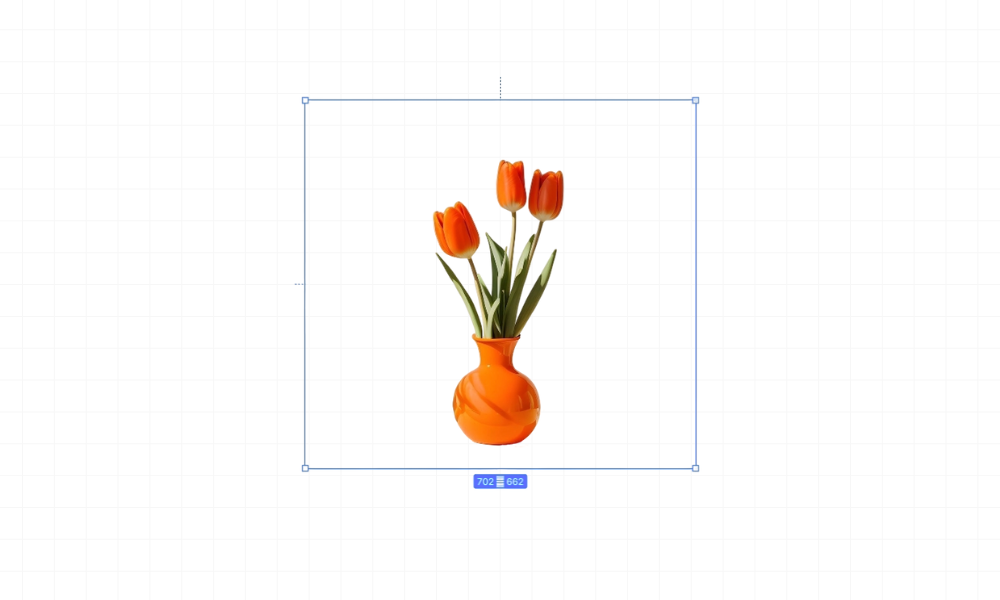
WooCommerce does not intelligently serve the right image size to each device by default. When you upload a 4000 × 5000 px, 5–8 MB photo straight from your iPhone or DSLR, here’s exactly what happens:
- The original giant file is stored and often served as-is to every visitor (desktop, tablet, mobile).
- WooCommerce generates a few fixed thumbnail sizes (usually 300 px, 600 px, 1024 px, etc.), but the theme or page builder frequently falls back to the full-resolution original for product galleries, zoom features, or responsive breakpoints.
- On mobile, a visitor on 3G/4G still downloads multiple megabytes just to see one product, killing load time and eating their data.
Recommended Image Dimensions (2025 Best Practice)
| Use Case | Recommended Pixel Dimensions | Max File Size (WebP/AVIF) | Notes |
|---|---|---|---|
| Main shop/catalog thumbnail | 600 × 600 px | ≤ 80 KB | Square crop, used in grids |
| Single product page (default) | 1200 × 1200 px | ≤ 180 KB | Balances sharpness and speed |
| Product gallery + zoom | 1800 × 1800 px | ≤ 350 KB | Only loaded on click/hover |
| Full-screen sliders/heroes | 2560 × 2560 px max | ≤ 600 KB | Rarely needed; serve via CDN with responsive srcsets |
Pro Tips:
- Never upload anything larger than 1800–2000 px on the longest edge.
- Always use next-gen formats (WebP or AVIF), they’re 30-70% smaller than JPEG at equal quality.
- Let a plugin (Imagify, ShortPixel, or Smush Pro) auto-convert and generate proper srcsets so browsers pick the ideal size automatically.
- Strip EXIF data and compress aggressively, aim for 75-85% quality (visually lossless)
- Use 72–96 DPI (web standard – no need for 300 DPI)
- Crop unnecessary space before uploading.
Upload smart once, and your store will feel instantly faster on every device without sacrificing crisp retina-quality visuals.
| Format | Avg. File Size Saving vs JPEG | Transparency | Animation | Best For | 2025 Recommendation |
|---|---|---|---|---|---|
| JPEG | Baseline | No | No | Photos with many colors | Only legacy |
| PNG | 0–20% worse | Yes | No | Logos, icons, simple graphics | Rarely for products |
| WebP | 25–35% smaller | Yes | Yes | Almost everything | BEST CHOICE |
| AVIF | 40–50% smaller | Yes | Yes | Future-proof, best quality/size | Excellent if supported |
Winner in 2025: WebP (with AVIF fallback) Over 97% of browsers now support WebP, and WooCommerce + modern plugins serve it automatically.
How to Compress Product Images Without Losing Quality
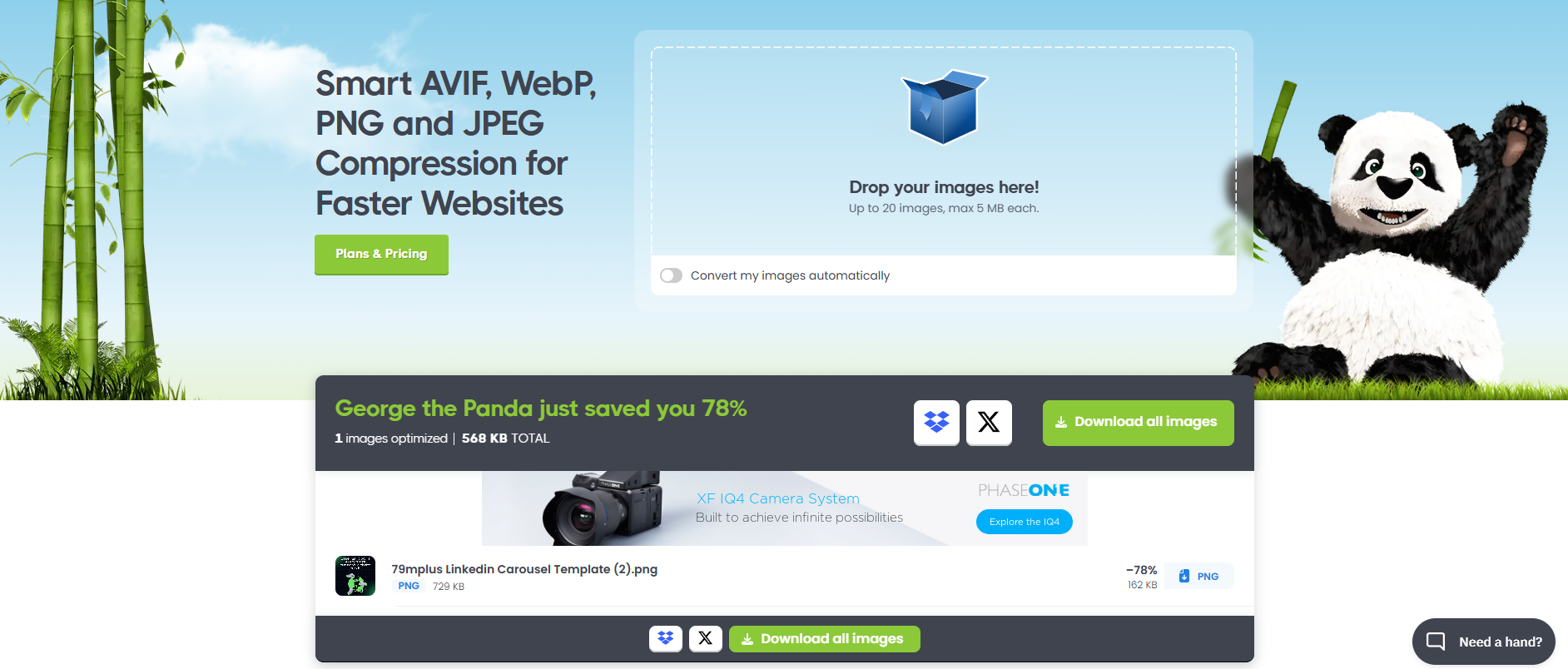
Three proven methods:
1. Best Plugins (Set & Forget)
- ShortPixel – Best overall, excellent WebP/AVIF, adaptive compression
- Imagify – Easiest interface, great bulk optimizer
- Smush Pro – Good free version + paid WebP
- Optimole – Cloud-based, serves the perfect size per device
2. Free Online Tools (Before Upload)
- Squoosh.app (Google)
- TinyPNG
- Compressor.io
3. Bulk Compress Existing Images
- Install ShortPixel or Imagify
- Go to the plugin’s “Bulk” page
- Click “Start Optimizing” – it will process thousands of images automatically
- Enable “Serve WebP” option
Most stores see 60–85% size reduction with zero visible difference.
Quick Summary: Use ShortPixel or Imagify for automatic bulk compression + WebP conversion – the fastest way to reduce image size without losing quality.
How to Enable Lazy Loading in WooCommerce (Step-by-Step)
What is lazy loading? Images only load when the visitor scrolls near them – saves massive bandwidth on long pages.
WooCommerce + WordPress 5.5+ has native lazy loading built-in.
How to enable it (2 ways):
Method 1 – Native (No Plugin Needed)
- Go to WooCommerce → Settings → Products → Display
- Make sure “Enable lazy loading for product images” is checked (available since WC 8.5+)
- Or add this to functions.php: add_filter( ‘wp_lazy_loading_enabled’, ‘__return_true’ );
Method 2 – With Plugin (More Control) Use Smush, Jetpack, or Perfmatters → enable lazy load with placeholders.
Quick Summary: Enable WordPress native lazy loading – it’s free, instant, and works perfectly with WooCommerce.
Use a CDN to Serve WooCommerce Images Faster
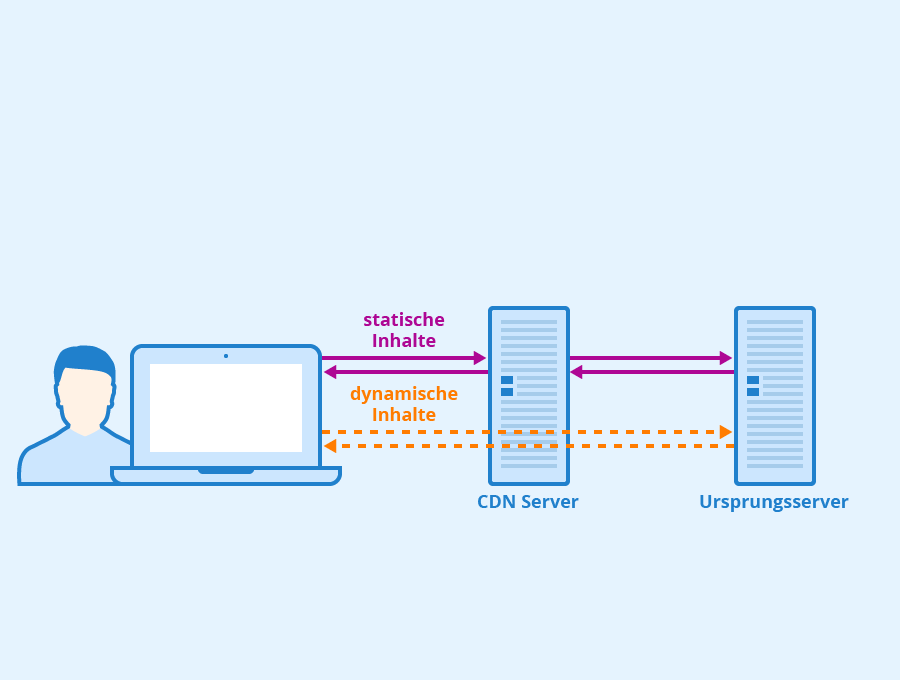
A CDN (Content Delivery Network) stores your images on servers worldwide, so they load from the closest location to your visitor.
Best CDNs for WooCommerce 2025:
- Cloudflare (free plan works great)
- Bunny.net (cheapest + excellent optimizer)
- KeyCDN
- Optimole (CDN + optimization in one)
Simple Setup with Bunny.net + Optimole:
- Sign up for Optimole (free for <5k visitors/mo)
- Install Optimole plugin
- Connect account → all images automatically served via CDN + optimized + WebP
Result: Images load 2–5× faster globally.
Quick Summary: Use Optimole or Cloudflare + Bunny.net CDN – your images will load instantly worldwide.
How to Regenerate Thumbnails the Right Way
When you change image sizes or switch to WebP, old thumbnails stay in your server.
Best Plugin: Regenerate Thumbnails (free) or ShortPixel/Imagify built-in tool
Step-by-Step:
- Install “Regenerate Thumbnails” plugin
- Go to Tools → Regenerate Thumbnails
- Check “Skip existing image sizes” if you have thousands
- Click “Regenerate Thumbnails For All Attachments”
- Wait (can take hours – do it off-peak)
This fixes blurry or wrong-sized images instantly.
| Plugin | Compression | WebP/AVIF | CDN Included | Free Version | Best For |
|---|---|---|---|---|---|
| ShortPixel | Excellent | Yes/Yes | No | 100/mo | Best quality + bulk |
| Imagify | Excellent | Yes/Yes | No | 20 MB/mo | Beginners, beautiful dashboard |
| Smush | Good | Yes (Pro) | No | Unlimited | Free unlimited compression |
| Optimole | Excellent | Yes/Yes | YES | 5k visits | Lazy load + CDN + auto scaling |
| EWWW IO | Very Good | Yes | Optional | Unlimited | Self-hosted, no monthly limits |
Personal recommendation 2025: Optimole for most stores (all-in-one), ShortPixel if you want maximum compression.
Your Complete WooCommerce Image Optimization Checklist
- Resize images to max 1500px before upload
- Convert all images to WebP (or AVIF)
- Install ShortPixel, Imagify, or Optimole
- Run bulk optimization on all existing images
- Enable WebP delivery
- Turn on lazy loading
- Connect a CDN (Optimole or Bunny.net)
- Regenerate thumbnails
- Test with PageSpeed Insights / GTmetrix
Conclusion
Optimizing WooCommerce product images is not optional in 2025 it’s essential for speed, SEO, and sales.
By using the right sizes, modern formats like WebP, proper compression, lazy loading, and a CDN, you can cut page weight by 70–90% while making images look better than ever.
Start today, your customers (and Google) will thank you.
FAQs – WooCommerce Image Optimization 2025
What is the best image size for WooCommerce products?
The ideal size is 1200×1200 pixels for single product images and 600×600 for catalog views. Never upload larger than 1500px on the longest side.
How do I compress images in WooCommerce?
Install a plugin like ShortPixel, Imagify, or Optimole, then run the bulk optimization tool. It automatically compresses and converts all images to WebP.
Is WebP good for WooCommerce?
Yes. WebP is the best format for WooCommerce in 2025. It reduces file size by 25–35% compared to JPEG with better or equal quality.
Why are my WooCommerce product images blurry?
Usually, this is because you changed theme/image sizes but didn’t regenerate thumbnails, or you’re uploading small images that get stretched. Fix with the “Regenerate Thumbnails” plugin.
How do I reduce product image size without losing quality?
Use lossy compression with ShortPixel or Imagify on “Glossy” or “Aggressive” setting, plus convert to WebP – most stores save 70–80% with zero visible difference.
Should I use a CDN for WooCommerce images?
Absolutely – a CDN like Optimole or Bunny.net can cut image load time in half, especially for international customers.
How to optimize WooCommerce for mobile speed?
Focus on image optimization first: ensure correct sizes, use WebP, optimize compression, enable lazy loading, and utilize a CDN. These fixes improve mobile speed more than anything else.