
Learning how to install a WordPress theme is one of the most exciting steps in your website journey. It is the moment your site starts to look like a real business or blog.
You might feel a little nervous about clicking the wrong button, but I want to reassure you right now: you cannot break your website just by trying out a new look.
Think of a theme like a new outfit for your site; it changes the appearance, but the person underneath stays the same. Choosing a great theme is important because it helps your visitors navigate your pages easily.
This guide will show you exactly how to install a WordPress theme step-by-step so you can feel completely confident.
Table of Contents
Things to Know Before Installing a WordPress Theme
Before we start clicking buttons, there are a few simple things to understand. First, make sure you are using WordPress.org, which is the self-hosted version of WordPress.
This guide is written for people who have their own hosting and can access the full admin dashboard. If your website address ends in “https://www.google.com/search?q=.wordpress.com,” some of these steps might look different for you.
Once you log in to your website, you will spend most of your time in the area called the “Dashboard.” This is the control center where you manage everything.
One of the best things about WordPress is that themes are not permanent. You can change your mind and switch to a different theme later without losing your blog posts or pages.
This flexibility allows you to grow and change your style as your website gets bigger.
Method 1: How to Install a WordPress Theme Using the Directory
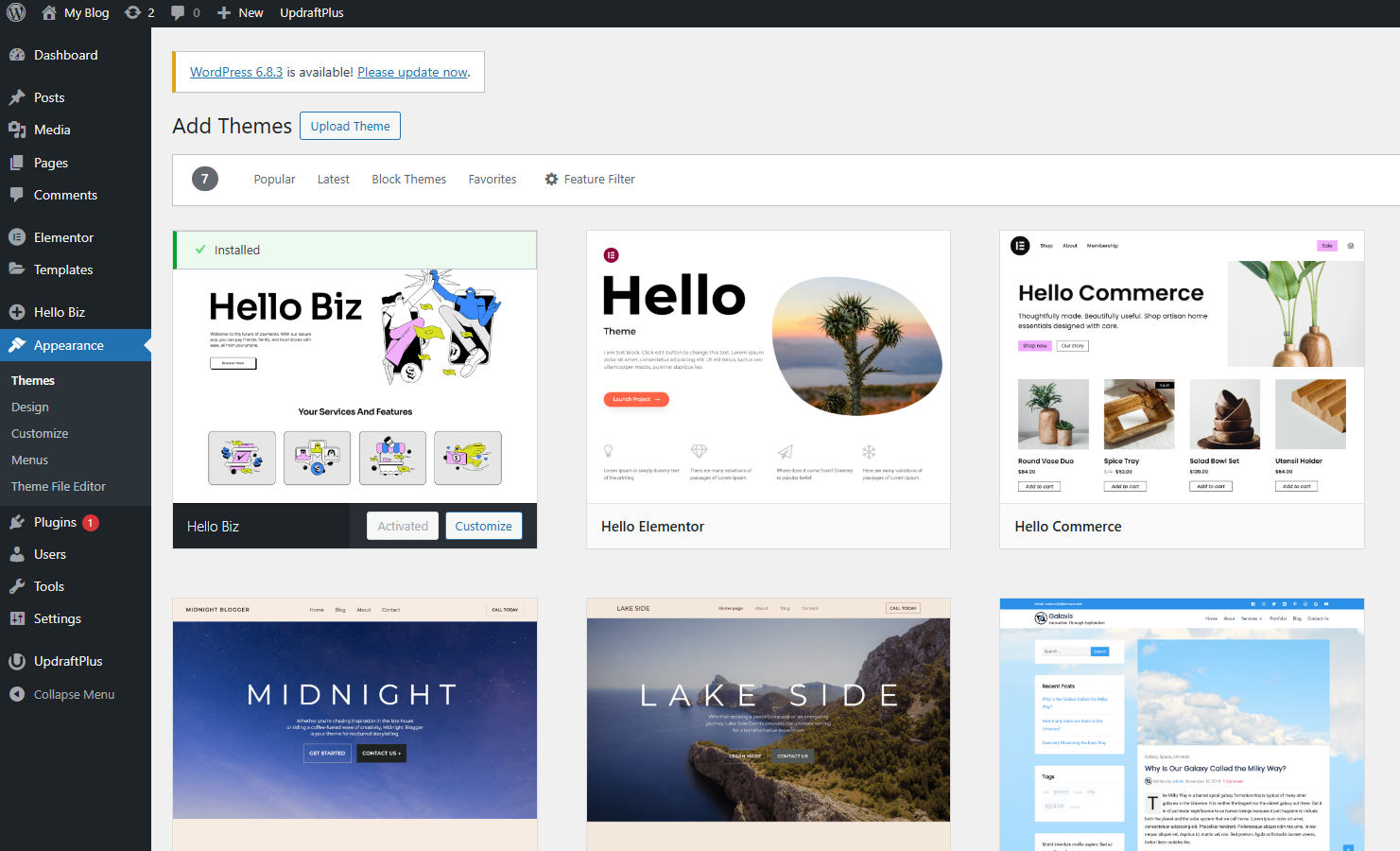
The easiest way to find a theme is through the official WordPress Theme Directory. This is a collection of thousands of free themes that have been checked for safety by the WordPress team.
This method is best for beginners because you never have to leave your website to find a professional design. Everything is handled right inside your dashboard with just a few clicks.
To start, log in to your WordPress site and look at the menu on the left side of your screen. Hover your mouse over the word Appearance and then click on Themes.
At the top of the Themes page, you will see a button that says Add New Theme. When you click this, WordPress will show you a gallery of popular and featured themes.
You can use the search bar on the right side to look for specific styles, like “minimalist” or “Hello Elementor.” When you find a theme you like, hover your mouse over the image and click the Install button.
WordPress will take a few seconds to download the files for you. Once it finishes, the button will change to say Activate. Click that button to make the theme live on your website.
Learn How to Make a WordPress Website in 2025 (Ultimate Beginner’s Guide)
Method 2: How to Install a WordPress Theme via ZIP File Upload
Sometimes you might buy a “Premium” theme from a marketplace or a specific designer. In this case, you will receive a file on your computer that ends in .zip.
Since this theme isn’t in the official directory, you need to upload it manually. This method is very common for business owners who want a unique look that free themes might not offer.
First, make sure you have your theme file ready on your computer. Log in to your WordPress dashboard and go to Appearance and then Themes.
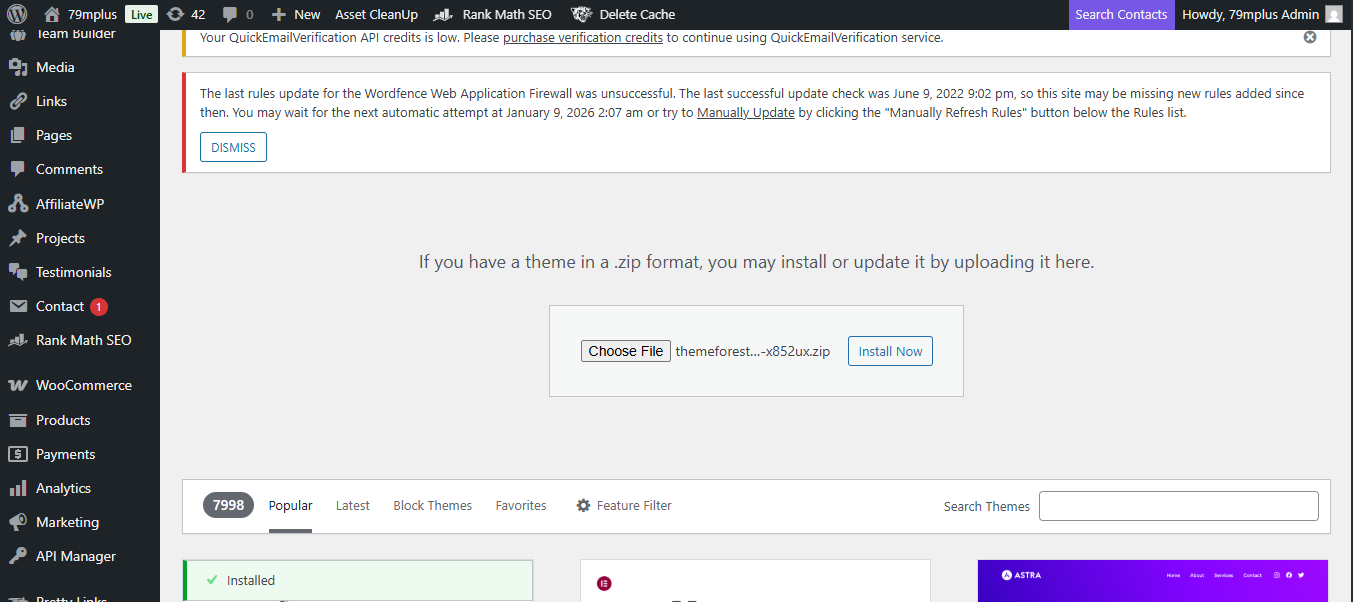
Click the Add New Theme button at the top of the page. This time, instead of searching the gallery, click the button at the very top that says Upload Theme.
A small box will appear asking you to choose a file. Click Choose File, select the ZIP file from your computer, and click Install Now.
A common mistake beginners make is trying to upload a folder that isn’t zipped; WordPress can only read the ZIP format. After the upload is complete, click the Activate link to turn on your new design.
Learn more about Why WordPress Is Still the Best Platform for Small Businesses in 2025
Method 3: How to Install a WordPress Theme Using FTP (Advanced)
FTP stands for “File Transfer Protocol.” Most beginners will never need this method, so feel free to skip this section.
However, it is a good tool to know about if your website hosting has a limit on how large of a file you can upload. Knowing how to install a WordPress theme via FTP can be a great backup plan.
To use this method, you need an FTP program like FileZilla and your login details from your host. You would connect to your server and find the folder named /wp-content/themes/.
You then unzip your theme folder on your computer and drag it into that directory on the server. Once the transfer is done, you can go back to your dashboard to activate it.
This is a more manual way of how to install a WordPress theme, but it achieves the same result.
How to Activate and Customize Your Theme
After you click the “Activate” button, your theme is officially live for the world to see. However, it might look a little plain at first because it doesn’t have your logo or colors yet.
To start making it your own, go to Appearance and click on Customize. This will open a live preview of your site with a menu on the left side.
In the Customizer, you can change things like your site title, your header image, and your background colors. If you are using a newer “Block Theme,” you might see a button called Editor instead.
This tool allows you to click on any part of the page and move it around like a digital scrapbook.
I recommend making small changes one at a time so you can see how they look. Don’t feel like you have to change everything on the first day.
It is much better to get your content ready first and then slowly tweak the design as you get more comfortable with the tools.
Common Problems Beginners Face (And Easy Fixes)
If things don’t look right immediately, do not panic. A very common issue is that the “Layout looks different than the demo.” When you see a theme preview, it is often filled with beautiful photos and text that you don’t have yet.
Once you start adding your own blog posts and images, your site will start to look more like the professional demo.
Another common error is seeing a message that says, “The package could not be installed.
The theme is missing the style.css stylesheet.” This usually happens when you upload the wrong ZIP file. Sometimes, when you buy a theme, the file you download contains the theme PLUS instructions and licenses.
Try unzipping the main file on your computer first to see if there is another ZIP file inside that is just the theme itself.
Finally, if your site looks “broken” or messy after an install, it is likely just a setting that needs to be toggled. Most themes come with a “Help” or “Documentation” file.
Taking five minutes to read the setup guide can save you hours of frustration. Your content is still safe, and you can always switch back to your old theme if you need to.
Frequently Asked Questions
Can I change my theme later?
Yes, you can change your theme as many times as you like. Your blog posts, pages, and comments will stay exactly where they are. You may just need to set up your menus or sidebar widgets again to match the new layout.
Will installing a theme delete my content?
No, installing a theme does not delete your content. A theme only changes how your content is displayed to your visitors. Your data is stored safely in a different part of your website called the database.
What happens if a theme breaks my site?
In the rare case that a theme causes an error, you can simply go back to the Themes menu and activate a different one. WordPress also has a “recovery mode” that helps you fix issues if you can’t access your dashboard.
Conclusion
Installing a WordPress theme is a major milestone in your journey as a website owner. Whether you choose a free theme from the directory or upload a premium design you purchased, the process is designed to be simple and safe.
Remember that your website is a work in progress, and you don’t have to make it perfect on the very first day.
The best way to learn is to experiment. Try out a few different themes, play with the colors in the Customizer, and see what feels right for your brand.
You have all the tools you need to build something beautiful. Congratulations on taking this big step toward launching your website!