
Imagine clicking a link and seeing a cold, blank screen that says “404 Not Found.” It feels like the website is broken, doesn’t it? A 404 page appears when a user visits a URL that no longer exists on your site. Default WordPress 404 pages are often plain and unhelpful to your visitors. Customizing this page allows you to turn a frustrating moment into a positive experience.
A well-designed error page keeps users on your site instead of letting them click away. It helps maintain your brand’s voice even when something goes wrong. For businesses, this is a chance to guide lost customers back to your products or services. By adding a simple search bar or links to popular posts, you improve WordPress UX instantly. Let’s learn how to build one that works for your brand.
Table of Contents
Why Custom 404 Pages Matter
When a visitor hits a dead end, they usually feel annoyed. A custom 404 page acts as a friendly guide to get them back on track. If your error page looks like the rest of your site, it builds trust and professional credibility.
Beyond looking good, these pages serve a practical purpose for your business. They help reduce your “bounce rate,” which is how quickly people leave your site. By providing clear navigation, you give the user a reason to stay and explore. This simple change can actually help your search engine rankings over time.
Methods to Create a Custom 404 Page in WordPress
There are several ways to build a WordPress custom error page. Whether you prefer a visual builder or a bit of code, there is a method here for you.
Method 1: Using the Theme Customizer
Many modern WordPress themes come with built-in options to change your error page. This is the easiest way to make changes without adding extra software to your site.
-
When to use it: If your theme already supports 404 customization.
-
Skill Level: Absolute Beginner.
-
Pros: No plugins needed; very fast to set up.
-
Cons: Options are often limited to what the theme developer provided.
Step-by-Step Instructions:
-
Log in to your WordPress dashboard.
-
Go to Appearance and then click Customize.
-
Look for a section labeled “404 Page” or “Error Page Settings.”
-
Change the text, background image, or layout as provided by your theme.
-
Click Publish to save your changes.
Method 2: Using a Page Builder (Elementor or Gutenberg)
If you use a tool like Elementor or the built-in WordPress Block Editor, you have total creative control. This allows you to design the page exactly like any other page on your site.
-
When to use it: When you want a unique, high-end design.
-
Skill Level: Beginner to Intermediate.
-
Pros: Total visual control; no coding required.
-
Cons: May require a “Pro” version of certain plugins (like Elementor Pro).
Step-by-Step Instructions:
-
Create a new page and title it “404 Error.”
-
Design the page using blocks or your preferred page builder.
-
If using the Block Editor (Full Site Editing), go to Appearance > Editor.
-
Click on Templates and select the “404” template.
-
Edit the blocks on the screen to match your branding and add a “Return Home” button.
-
Save the template to apply it site-wide.
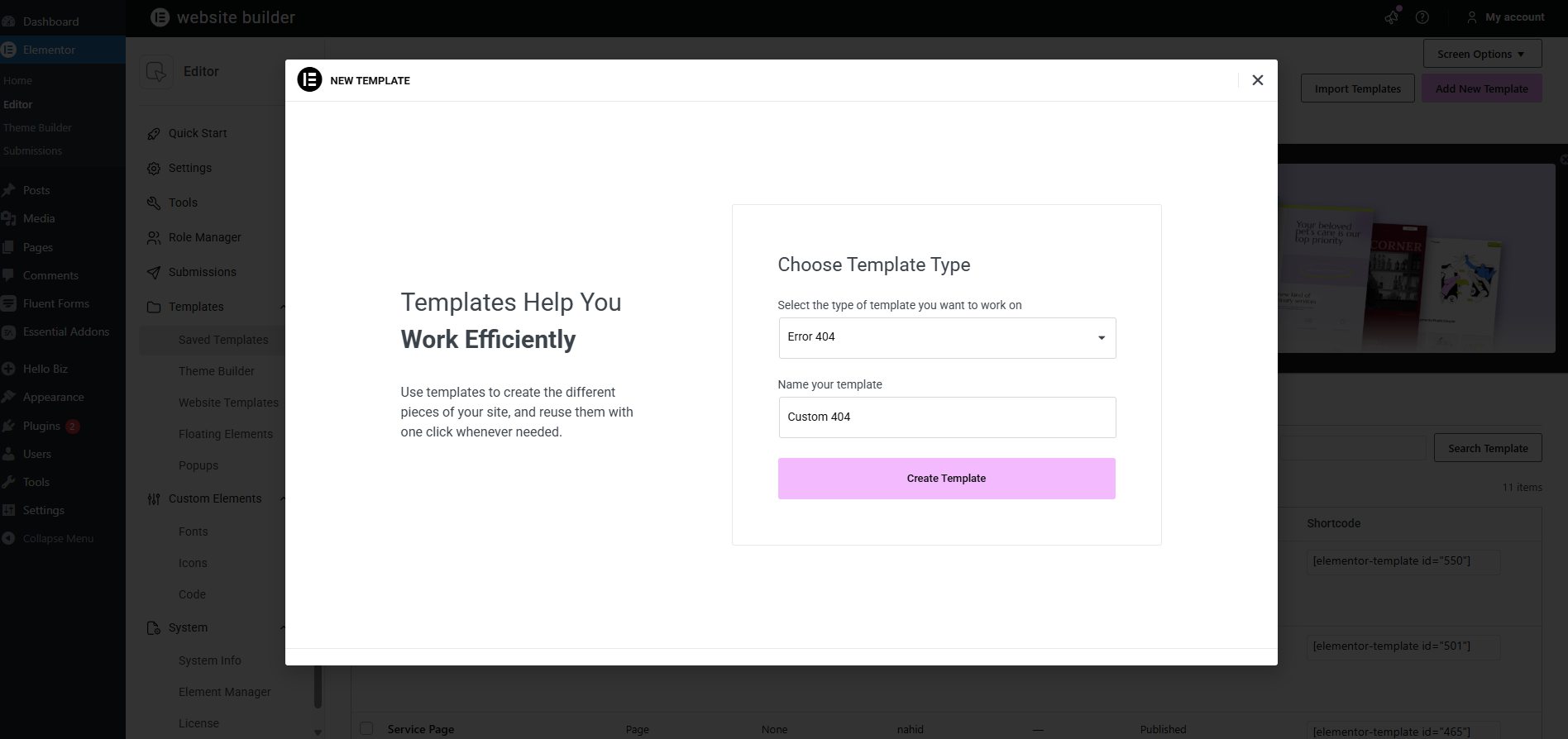
If you use the Elementor page builder, you have total creative control over your error page. This allows you to design a professional look that matches your brand perfectly without writing any code.
-
When to use it: If you want a unique, high-end design using a visual builder.
-
Skill Level: Beginner to Intermediate.
-
Pros: Total visual control; easy to add buttons and search bars.
-
Cons: Requires the Pro version of Elementor to use the Theme Builder.
Step-by-Step Instructions:
-
Log in to your WordPress dashboard and go to Templates > Theme Builder.
-
Click the Add New button and select Single 404 from the list.
-
Give your template a name like “Custom 404” and click Create Template.
-
Choose a pre-made layout from the library or click the “X” to start from scratch.
-
Drag and drop widgets like a Heading, Search Form, and a Button linked to your homepage.
-
Click Publish and add a Display Condition to “Include: 404 Page.”
-
Save and close to apply your new design site-wide.
Method 3: Using a Dedicated Plugin
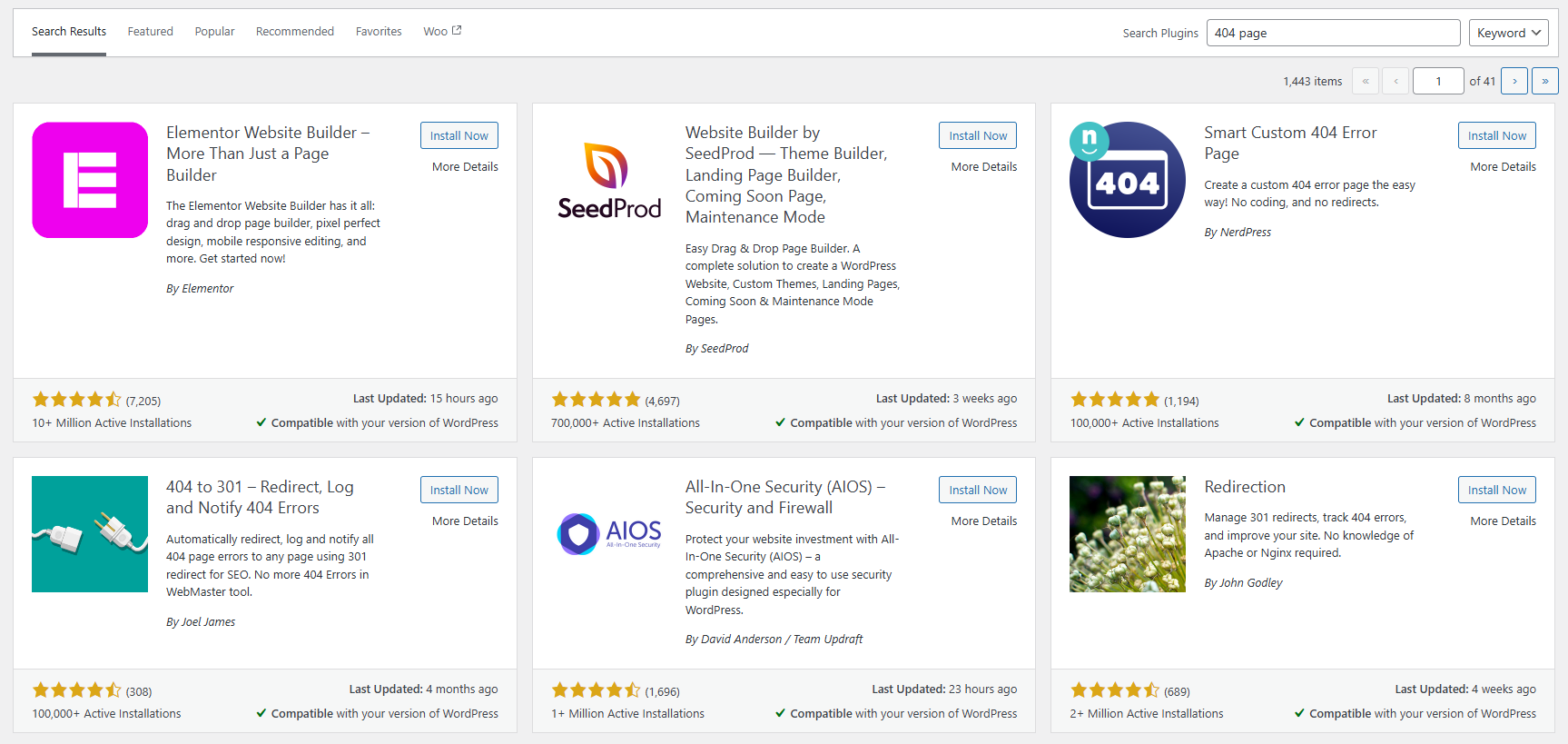
If your theme doesn’t have options and you don’t use a page builder, a plugin is a great choice. The “404page” plugin is a popular and free option for this task.
-
When to use it: When you want to use a standard WordPress page as your error page.
-
Skill Level: Beginner.
-
Pros: Works with almost any theme; very reliable.
-
Cons: Adds one more plugin to your website’s list.
Step-by-Step Instructions:
-
Go to Plugins > Add New and search for “404page.”
-
Install and activate the plugin.
-
Create a regular WordPress page (Pages > Add New) and design it how you like.
-
Go to Appearance > 404 Error Page in your dashboard.
-
Select the page you just created from the dropdown menu and click Save.
Method 4: Using the Theme File (404.php)
For those who want to avoid plugins and keep their site lean, editing the 404.php WordPress file is the best route. This is how professional developers handle the task.
-
When to use it: When you want maximum performance and have basic PHP knowledge.
-
Skill Level: Developer-Friendly.
-
Pros: No plugin overhead; most lightweight method.
-
Cons: You must use a Child Theme to prevent losing changes during updates.
Step-by-Step Instructions:
-
Access your site files via FTP or your hosting File Manager.
-
Navigate to
/wp-content/themes/your-child-theme/. -
If a
404.phpfile doesn’t exist, create one. -
Open the file and add your custom HTML and PHP code.
-
You can use
<?php get_search_form(); ?>to easily add a search bar. -
Save the file and test a broken URL on your site to see the result.
Here is a Simple and Clean 404.php Template
<?php /** * The template for displaying 404 pages (Not Found) */ get_header(); ?> <main id="primary" class="site-main error-404-container"> <section class="error-404 not-found" style="text-align: center; padding: 50px 20px;"> <header class="page-header"> <h1 class="page-title"><?php esc_html_e( 'Oops! That page can’t be found.', 'text-domain' ); ?></h1> </header> <div class="page-content"> <p><?php esc_html_e( 'It looks like nothing was found at this location. Maybe try a search?', 'text-domain' ); ?></p> <div class="search-form-wrapper" style="margin: 20px auto; max-width: 500px;"> <?php get_search_form(); ?> </div> <div class="home-link" style="margin-top: 30px;"> <a href="<?php echo esc_url( home_url( '/' ) ); ?>" class="button" style="background-color: #0073aa; color: #fff; padding: 10px 20px; text-decoration: none; border-radius: 5px;"> <?php esc_html_e( 'Return to Homepage', 'text-domain' ); ?> </a> </div> </div> </section> </main> <?php get_footer();
Understanding the Code
Here is a quick breakdown of what this code does for your website:
-
get_header()andget_footer(): These functions pull in your site’s existing header and footer. This ensures your 404 page looks like it belongs to your website. -
esc_html_e(): This is a security function. It helps display text safely while making it possible to translate your site into other languages later. -
get_search_form(): This displays the standard WordPress search bar. It gives the user an immediate tool to find what they actually need. -
home_url('/'): This dynamically finds your homepage link so the “Return to Homepage” button always works, even if you change your domain.
Where to Place This File
-
Connect to your site using an FTP client or your hosting File Manager.
-
Navigate to
/wp-content/themes/your-child-theme/. -
Create a new file named
404.php. -
Paste the code above into that file and save it.
-
Visit a fake URL on your site (like
yoursite.com/testing123) to see it in action.
Pro Tip: Always use a child theme when editing these files. If you edit the main theme directly, your custom 404 page will be deleted the next time your theme developer releases an update.
79mplus specializes in creating custom backend solutions like this to keep your site lean and professional. If you want to add more advanced features—like a “Recent Posts” list or a custom contact form—to your error page, we can build a tailor-made solution for you.
Best Practices for Custom 404 Pages
A good 404 page should be helpful, not just pretty. Here are a few things you should always include to keep your visitors happy.
-
Add a Search Bar: This allows users to find exactly what they were looking for without leaving.
-
Link to the Homepage: Give them an easy “exit” button to get back to your main content.
-
List Popular Pages: Show them your best blog posts or products to pique their interest.
-
Keep it Simple: Don’t overwhelm a lost user with too many buttons or flashing images.
-
Use Friendly Language: Instead of “Error 404,” try “Oops! We can’t find that page.”
How 79mplus Can Help
Customizing a 404 page is just the beginning of building a professional website. At 79mplus, we help businesses take their digital presence to the next level with expert technical solutions.
Whether you need custom WordPress development to build unique features or WordPress theme customization to match your brand perfectly, our team is here to help. We focus on UX improvements in WordPress to ensure your customers have a seamless experience from the moment they land on your site.
We act as your technical partner, handling everything from backend functionality to complex plugin development. If you want a website that performs as well as it looks, let’s talk about your project.
FAQ: Custom 404 Pages
What is a 404 page in WordPress?
It is the page a visitor sees when they try to access a page on your site that doesn’t exist. This usually happens because of a broken link or a mistyped URL.
Can I create a custom 404 page without coding?
Yes! You can use a dedicated plugin or a page builder like Elementor to design a custom 404 page without writing any code.
Does a custom 404 page help SEO?
Indirectly, yes. It helps keep users on your site longer and reduces bounce rates. This signals to Google that your site provides a good user experience.
Where is the 404.php file located?
You can find it in your main theme folder: /wp-content/themes/[your-theme]/404.php. Always use a child theme when making edits here.
Conclusion
Creating a custom 404 page is a simple yet powerful way to fix 404 errors WordPress users might face. It turns a potential exit point into a helpful navigation tool. By choosing any of the methods above, you ensure your website remains professional and user-friendly.
Remember to keep your design simple and always offer a path back to your main content. If you find that you need more advanced features or a completely custom-coded solution, 79mplus is ready to assist with high-end development and UX strategy.