
Table of Contents
Introduction
If you’ve ever tried to update WordPress and seen the dreaded “Update Failed” error message, you’re not alone. This frustrating error stops your updates in their tracks and leaves you wondering what went wrong. The good news? Your website is almost certainly fine, and the problem is usually fixable with a few simple steps.
The “Update Failed” error typically appears as a red banner in your WordPress dashboard when you attempt to update WordPress core, plugins, or themes. It disrupts your content management workflow and prevents you from keeping your site secure and up to date. This error happens because WordPress can’t communicate with the update servers or REST API, which is the digital bridge that lets different parts of your WordPress site talk to each other.
In this guide, we’ll walk you through what causes this error and seven practical solutions you can try—even if you’re not technical. Most of these fixes are safe, straightforward, and don’t require any coding knowledge. We’ll also show you how to prevent this error from happening again in the future.
By the end of this guide, you’ll understand exactly what went wrong and how to get your WordPress site updating smoothly again.
What Causes the “Update Failed” Error?
The “Update Failed” error happens when WordPress can’t complete an update because something is blocking or disrupting the process. Here are the most common causes:
REST API Problems
The REST API is WordPress’s communication system. Think of it like a postal service for your website—it delivers messages between the WordPress editor and your server. When the REST API is blocked, disabled, or misconfigured, WordPress can’t send or receive these critical messages, and updates fail. This is the most common cause of update failures.
Internet Connection Issues
Sometimes a slow or unstable internet connection can cause WordPress to time out while trying to download or install updates. If your connection drops mid-update, WordPress aborts the process and shows the error.
Plugin Conflicts
A plugin installed on your site might be interfering with the update process. Security plugins, caching plugins, or poorly coded plugins can sometimes block updates by accident. Even if the plugin is supposed to protect your site, it might be too aggressive and block legitimate update requests.
Security Plugins or Firewall Blocks
Your security plugin or hosting firewall might think an update request is suspicious and block it. Services like Cloudflare, Sucuri, or WordPress security plugins can all accidentally block legitimate updates if they’re configured too strictly.
Incorrect File Permissions
WordPress needs permission to write files to your server. If file permissions are wrong, WordPress can’t create or modify the files it needs during an update, and the update fails.
Hosting Server Restrictions
Some hosting providers limit what their servers can do. Your host might have disabled certain PHP functions, set a low memory limit, or restricted how WordPress can communicate with the update servers.
Outdated PHP Version
If your hosting is running an old version of PHP (WordPress’s programming language), it might not support the features that modern WordPress updates require. This is less common now, but it can still happen on older hosting plans.
7 Ways to Fix the “Update Failed” Error
Solution 1: Check Your Internet Connection
Before you troubleshoot anything else, start with the simplest fix: make sure your internet connection is stable.
When to use this fix:
Use this first if you’re updating WordPress and suddenly see the error. It’s the quickest thing to rule out.
Step-by-step instructions:
- Check if you’re still connected to your network or Wi-Fi
- If you’re on Wi-Fi, try moving closer to your router or restarting it
- If you’re on a mobile hotspot, make sure your phone has a strong signal
- Open a new browser tab and visit a website like Google.com to confirm you’re online
- Go back to your WordPress dashboard and try the update again
Why this solution works:
Updates require a steady, uninterrupted internet connection. Even a brief connection drop can cause the update process to time out and fail. Ensuring a solid connection often solves the problem immediately.
Important warnings:
Don’t turn off your computer, close your browser, or unplug your modem while an update is in progress. This can corrupt your WordPress installation. Always wait for an update to finish before doing anything else.
Solution 2: Clear Browser Cache and WordPress Cache
Sometimes stale cached data in your browser or WordPress can cause communication problems. Clearing this cache forces WordPress to load fresh information.
When to use this fix:
If you’ve tried updating before and the error persists, cached data might be the culprit. Also use this if you’ve changed settings on your site recently.
Step-by-step instructions:
- Log out of your WordPress dashboard completely
- Clear your browser cache (in Chrome, press Ctrl+Shift+Delete on Windows or Cmd+Shift+Delete on Mac)
- Select “All time” as the time range
- Check “Cached images and files”
- Click “Clear data”
- Close your browser completely and reopen it
- Log back into WordPress and try the update again
Why this solution works:
Your browser stores copies of website files to load pages faster. If these copies are outdated, they can interfere with communication between your browser and WordPress. Clearing this cache gives WordPress a fresh start.
Important warnings:
This only clears your local browser cache, not your website’s cache. If you’re using a caching plugin on your site, try disabling it temporarily while updating (Solution 3 covers this).
Solution 3: Disable Plugins Temporarily
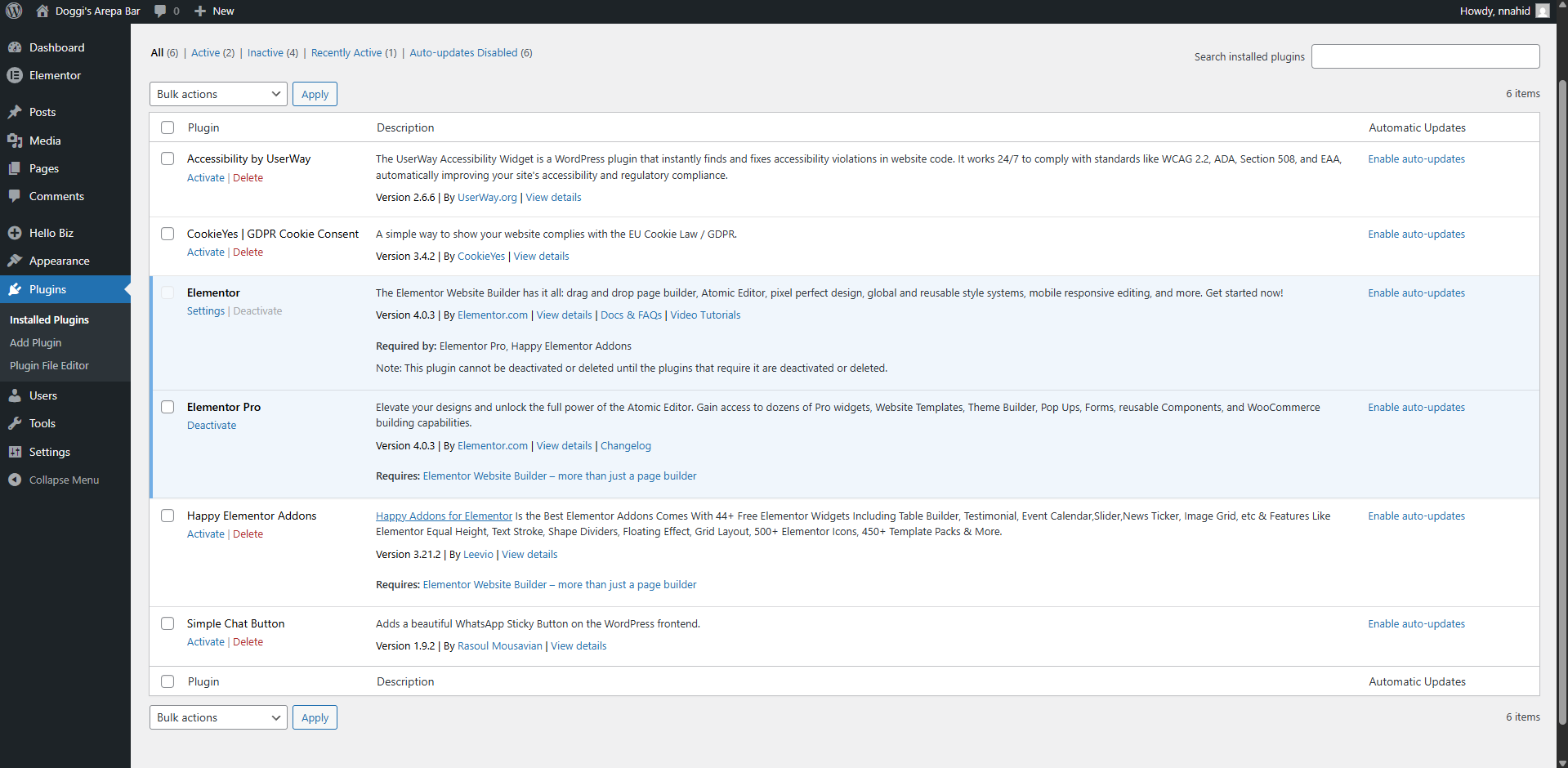
Plugins can sometimes interfere with updates, especially security and caching plugins. Disabling them temporarily helps identify if a plugin is the problem.
When to use this fix:
If you’ve tried the first two solutions and still see the error, a plugin is likely the culprit. Also use this if you’ve recently installed a new plugin and updates started failing.
Step-by-step instructions:
- Log into your WordPress dashboard
- Click on “Plugins” in the left sidebar
- Click “Installed Plugins”
- At the top of the plugin list, check the box to “Select All”
- In the “Bulk Actions” dropdown menu, select “Deactivate”
- Click “Apply”
- Go to “Dashboard” and try the update now
- If the update succeeds, you’ve found the problem: a plugin was interfering
Identifying the problematic plugin:
If disabling all plugins fixes the error, you need to find which one was causing it. Here’s how:
- Go back to “Plugins” > “Installed Plugins”
- Activate plugins one at a time, starting with security plugins and caching plugins
- After activating each plugin, try updating again
- When the error returns, you’ve found the problem plugin
- You can then uninstall it, switch to a different plugin, or contact the plugin developer for help
Why this solution works:
Plugins are add-ons that change how WordPress works. A poorly coded plugin or one with overly strict security settings can block legitimate update requests. Disabling all plugins removes their interference, allowing updates to proceed.
Important warnings:
Your website’s functionality will be limited while plugins are disabled. Don’t leave them off for long. Reactivate them as soon as you’ve completed the update.
Solution 4: Check Your WordPress Site URL Settings
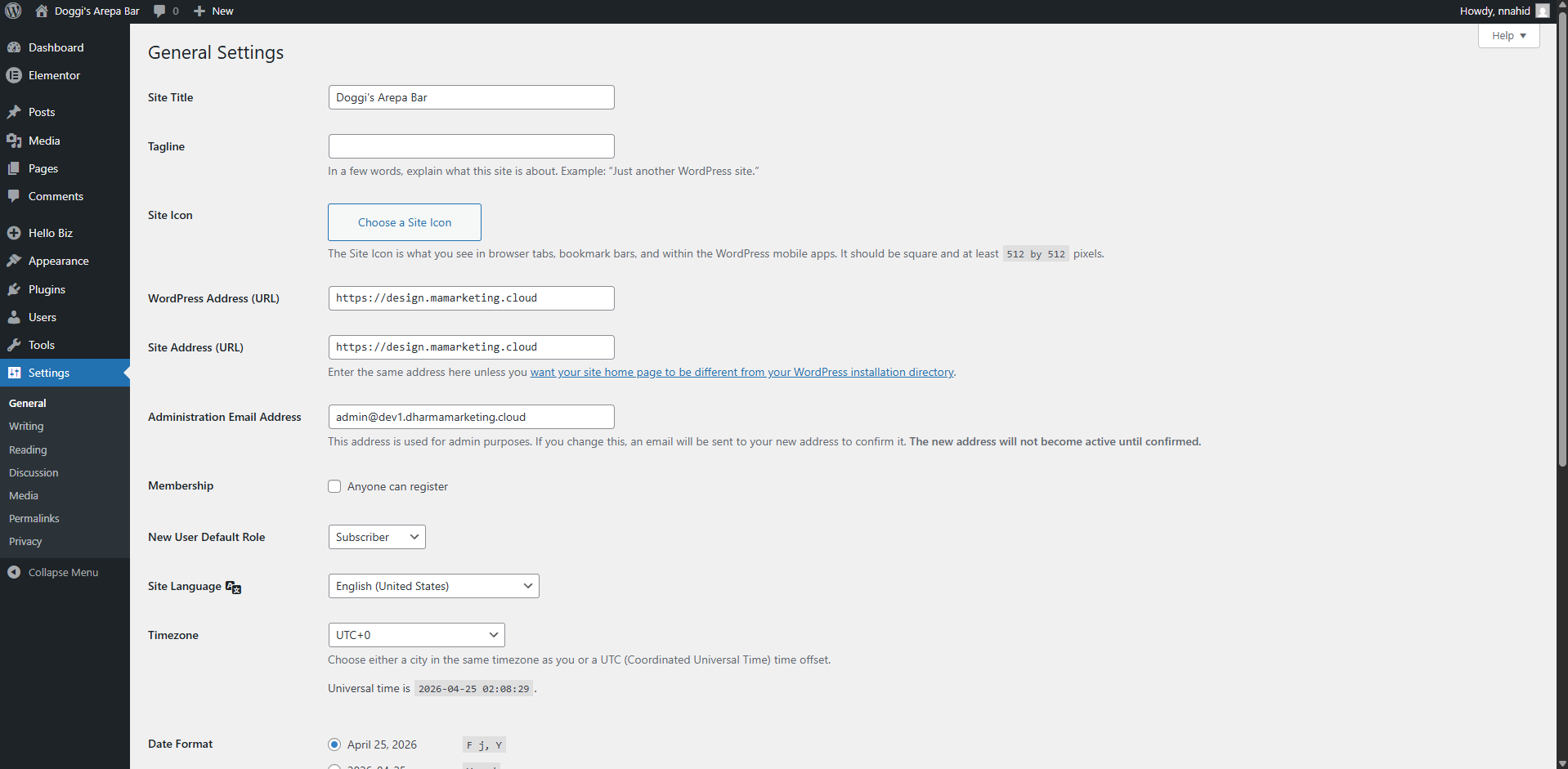
If you’ve changed your site’s URL recently or if it’s configured incorrectly, WordPress might not be able to communicate with itself during updates. This is surprisingly common and easy to fix.
When to use this fix:
Use this if you’ve recently migrated your site, changed your domain name, or moved to a new hosting provider.
Step-by-step instructions:
- Log into your WordPress dashboard
- Click on “Settings” in the left sidebar
- Click on “General”
- Look for two fields: “WordPress Address (URL)” and “Site Address (URL)”
- Make sure both URLs are identical and correct
- Ensure both URLs start with “https://” (not “http://”)
- Make sure they match your actual domain name (for example, if your site is www.example.com, both fields should say https://www.example.com)
- If you made any changes, click “Save Changes”
- Try the update again
Why this solution works:
If these URLs don’t match or are incorrect, WordPress gets confused about where to send and receive update files. It’s like sending a letter to the wrong address—it never reaches its destination. Correcting these URLs restores proper communication.
Important warnings:
Be very careful when changing these URLs. An incorrect URL can make your entire site inaccessible. If you accidentally break something, use FTP or your hosting control panel to edit the wp-config.php file, or contact your hosting provider for help.
Solution 5: Test REST API Functionality Using Site Health
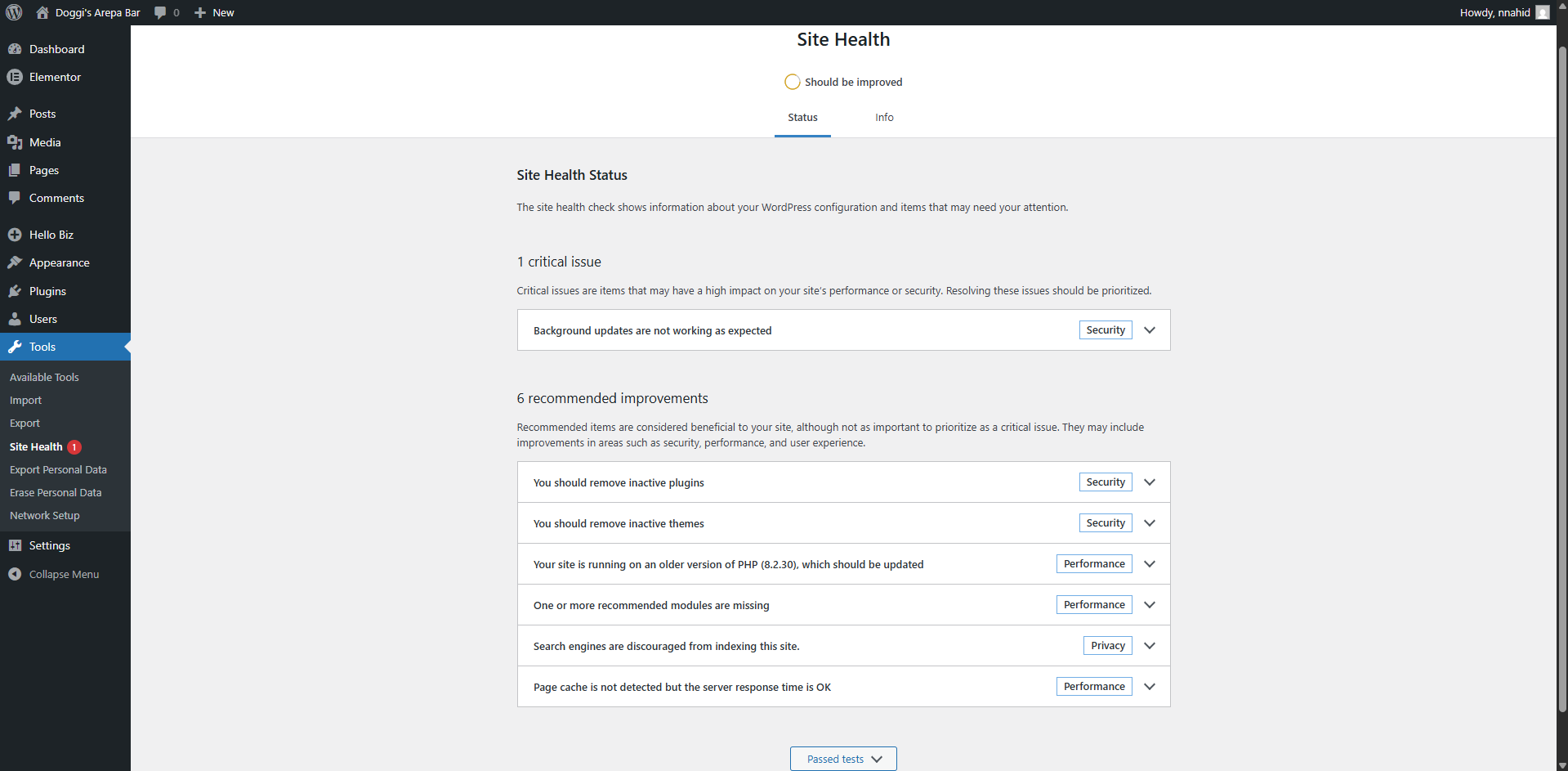
The REST API is critical for updates. WordPress has a built-in tool called Site Health that can tell you if your REST API is working correctly.
When to use this fix:
Use this whenever you see an “Update Failed” error. It helps diagnose whether the REST API is actually the problem and gives you clues about what’s blocking it.
Step-by-step instructions:
- Log into your WordPress dashboard
- Click on “Tools” in the left sidebar
- Click on “Site Health”
- Click on the “Status” tab
- Look for any messages mentioning “REST API”
- If you see a message like “The REST API encountered an unexpected result,” click on it to see more details
- The Site Health tool might show you a specific error, such as:
- “401 Not Authorized” (permission issues)
- “403 Cookie Nonce Is Invalid” (security token problem)
- “cURL error” (server communication problem)
- Note the specific error and proceed to the next solution
Why this solution works:
Site Health gives you diagnostic information about what’s broken. Instead of guessing, you know exactly what’s wrong, which helps you apply the right fix.
Important warnings:
The error message from Site Health is a clue, not a sentence. A “403” error doesn’t mean your site is broken—it just means something is blocking REST API requests. With the right fix, it’s resolved quickly.
Solution 6: Review File Permissions and Hosting Server Restrictions
If WordPress can’t write files to your server, updates will fail. This usually requires accessing your hosting control panel or using an FTP client.
When to use this fix:
Use this if other solutions haven’t worked or if you’re getting “permission denied” errors. Also use this if your hosting provider has recently made changes to your account.
Step-by-step instructions for checking file permissions:
- Log into your hosting control panel (cPanel, Plesk, or whatever your host uses)
- Look for a “File Manager” tool
- Navigate to your WordPress installation directory (usually “public_html” or “www”)
- Right-click on the “wp-content” folder
- Select “Change Permissions” or “Properties”
- Set the permissions to 755 (this allows WordPress to write files)
- Do the same for the wp-content/uploads folder
- If these options aren’t available in File Manager, use FTP instead
If you’re using FTP:
- Download an FTP client like FileZilla (it’s free)
- Connect to your hosting server using your FTP credentials (ask your host if you don’t have them)
- Navigate to your WordPress directory
- Right-click on wp-content and select “File Attributes”
- Change the permissions to 755
- Repeat for wp-content/uploads
- Try your update again
Checking memory limits:
WordPress needs adequate server resources to update. To check and increase your PHP memory limit:
- Log into your hosting control panel
- Look for “PHP Configuration” or “Select PHP Version”
- Click “Options” or “Settings”
- Find “memory_limit” and change it to at least 256M (or higher)
- Click “Save”
- Wait 10 minutes for the change to take effect
- Try your update again
Why this solution works:
Updates create new files and modify existing ones. If permissions are wrong, WordPress can’t do this. Similarly, updates require memory to download and process files. Insufficient memory causes timeouts.
Important warnings:
Don’t change permissions to 777 (full access)—this is a security risk. Stick with 755. If you’re not comfortable with FTP or file permissions, contact your hosting support team. They can help without breaking anything.
Solution 7: Contact Hosting Provider or Temporarily Disable Security Services
If all else fails, your hosting provider or a third-party security service might be blocking updates. This is especially common if you’re using Cloudflare or similar services.
When to use this fix:
Use this after trying all other solutions. Also use this if you recently enabled a security service or if Site Health mentions firewall blocks.
Checking if Cloudflare is blocking updates:
- Log into your Cloudflare account
- Go to your domain
- Click on the “Security” tab
- Look for firewall rules that might block wp-json or wp-admin requests
- Temporarily disable the most restrictive rules
- Wait 5 minutes for the change to take effect
- Try your WordPress update
- If it works, re-enable the rules one by one to find which one was blocking updates
- Ask Cloudflare support to whitelist the specific WordPress update endpoints
Disabling security plugins temporarily:
- Log into your WordPress dashboard
- Go to “Plugins” > “Installed Plugins”
- Deactivate any security plugins (Wordfence, Sucuri, iThemes Security, etc.)
- Try your update
- If it works, contact the plugin developer to configure it properly
- Reactivate the plugin once updates are complete
Contacting your hosting provider:
If you’re unsure about any of this, don’t worry. Email your hosting support team and say:
“I’m getting an ‘Update Failed’ error when trying to update WordPress. I’ve already tried clearing my cache and disabling plugins, but the error persists. Can you check if there are any server restrictions or firewall rules blocking my WordPress updates?”
Your hosting team has tools to diagnose server-level issues and can help you get updates running again.
Why this solution works:
Sometimes the problem isn’t with WordPress or your site—it’s with external services or hosting rules that are overly protective. Getting professional help ensures you don’t accidentally break something while troubleshooting.
Important warnings:
Never permanently disable security services without understanding why. Once you identify the issue, work with your hosting provider or security service to fix it properly, not just turn it off.
Read more about: 7 Proven Ways to Fix WordPress Login Redirect Loop Errors
How to Enable Maintenance Mode in WordPress: 4 Proven Ways (2026)
WordPress White Screen of Death: 7 Proven Solutions to Fix It
How to Prevent the “Update Failed” Error in the Future
Once you’ve fixed the error, follow these practices to prevent it from happening again:
Keep WordPress Updated Regularly
Update WordPress as soon as new versions are available. Regular updates prevent the update system from getting stale or broken. Don’t wait months between updates.
Use Quality Plugins
Only install plugins from reputable sources like WordPress.org or trusted developers. Read reviews and check that the plugin is actively maintained. Poorly coded plugins are a common cause of update failures.
Choose Reliable Hosting
Your hosting provider plays a big role in WordPress stability. Choose a host that supports modern WordPress requirements, offers good customer support, and doesn’t impose overly restrictive server limits.
Use a Staging Environment
If you manage multiple WordPress sites, set up a staging copy of each site where you can test updates before applying them to your live site. This catches problems before they affect real visitors.
Backup Your Website Before Major Updates
Before updating WordPress core, always back up your site. If something goes wrong, you can restore from the backup. Your hosting provider usually offers backup tools, or you can use a plugin like UpdraftPlus.
Monitor Site Health
Check your WordPress Site Health status regularly (Tools > Site Health). It alerts you to problems before they cause major issues like update failures.
How 79mplus Can Help
The “Update Failed” error is frustrating, but you don’t have to figure it out alone. 79mplus specializes in WordPress troubleshooting and backend fixes for small businesses, agencies, and content creators.
What 79mplus Offers:
WordPress Troubleshooting & Debugging When errors keep coming back, our team digs into your Site Health reports, debug logs, and server configurations to find the root cause—not just apply temporary fixes. We handle REST API issues, plugin conflicts, and server-level problems that other developers miss.
Plugin Conflict Resolution We identify which plugins are causing problems, test incompatibilities, and find solutions that don’t require you to sacrifice functionality. If a security plugin is too strict, we configure it properly instead of telling you to turn it off.
Custom WordPress Development If the error traces back to custom code or a theme issue, we fix it fast. Our developers work on everything from simple tweaks to full theme customization.
Theme & Plugin Development We build custom themes and plugins tailored to your business needs. No bloat, no conflicts—just clean code that works.
Website Maintenance & Performance Optimization Beyond fixing errors, we keep your WordPress site running smoothly. Regular updates, security monitoring, performance tuning, and ongoing support ensure you never see an “Update Failed” error again.
Whether it’s a quick fix or a comprehensive WordPress audit, 79mplus takes the guesswork out of WordPress problems and gets your site back on track fast.
Frequently Asked Questions
Q: Why does WordPress say “update failed”?
A: The most common cause is a REST API block (from a security plugin, firewall, or server restriction). Internet connection issues, plugin conflicts, and incorrect file permissions are also frequent culprits. The “Update Failed” error means WordPress couldn’t complete the update process, but your site is almost always safe.
Q: Can plugins cause “update failed” errors?
A: Yes. Security plugins, caching plugins, and poorly coded plugins can all interfere with updates. They might think an update is a suspicious request and block it. The fix is usually to temporarily disable plugins to identify which one is problematic, then either uninstall it, switch to a different plugin, or contact the developer for a configuration fix.
Q: Is the “update failed” error dangerous?
A: No. The error itself is not dangerous. It just means your WordPress update didn’t complete. Your website continues running on its current version. The real issue is that you’re missing security patches and new features. Keep trying to fix it and apply updates as soon as possible.
Q: How do I fix REST API issues in WordPress?
A: Start by checking your Site Health tool (Tools > Site Health). It will tell you if the REST API is blocked. From there, try: disabling plugins, checking Cloudflare settings, verifying your Site URL, checking file permissions, and contacting your hosting provider if needed. The REST API is usually easy to restore once you know what’s blocking it.
Q: What’s the fastest way to fix this error?
A: Start with the simplest fixes first: check your internet connection, clear your browser cache, disable plugins, and verify your Site URL. If those don’t work, check Site Health for more clues. Most “Update Failed” errors are fixed within 15 minutes using these steps.
Conclusion
The “Update Failed” error in WordPress is frustrating, but it’s also one of the most fixable problems you’ll encounter. In most cases, the solution is simple: check your REST API using Site Health, disable plugins to find conflicts, verify your Site URL, or contact your hosting provider.
Remember, your website is not broken—it just can’t complete the update process. With the seven solutions in this guide, you have a clear path to get your updates working again.
Going forward, keep WordPress and plugins updated regularly, use quality plugins from trusted sources, and monitor your Site Health dashboard. These practices prevent most update errors before they happen.
If you’re still stuck after trying these solutions, or if you want to prevent these errors from happening in the future, 79mplus offers expert WordPress troubleshooting and custom development services for businesses of all sizes. Our team specializes in fixing stubborn errors, optimizing performance, and building WordPress solutions that work reliably.