
Seeing a blank white screen instead of your website can be a very scary experience. This issue is often called the “WordPress White Screen of Death,” but there is no need to panic. It is actually one of the most common problems WordPress users encounter. Most of the time, your blog posts, images, and pages are perfectly safe. The screen is blank because a small error is stopping the website from loading properly. You do not need to be a computer expert to fix this yourself. This guide will walk you through the process with simple, calm steps. By following these solutions, you can get your site back online quickly. Let’s work together to find the right fix for your website.
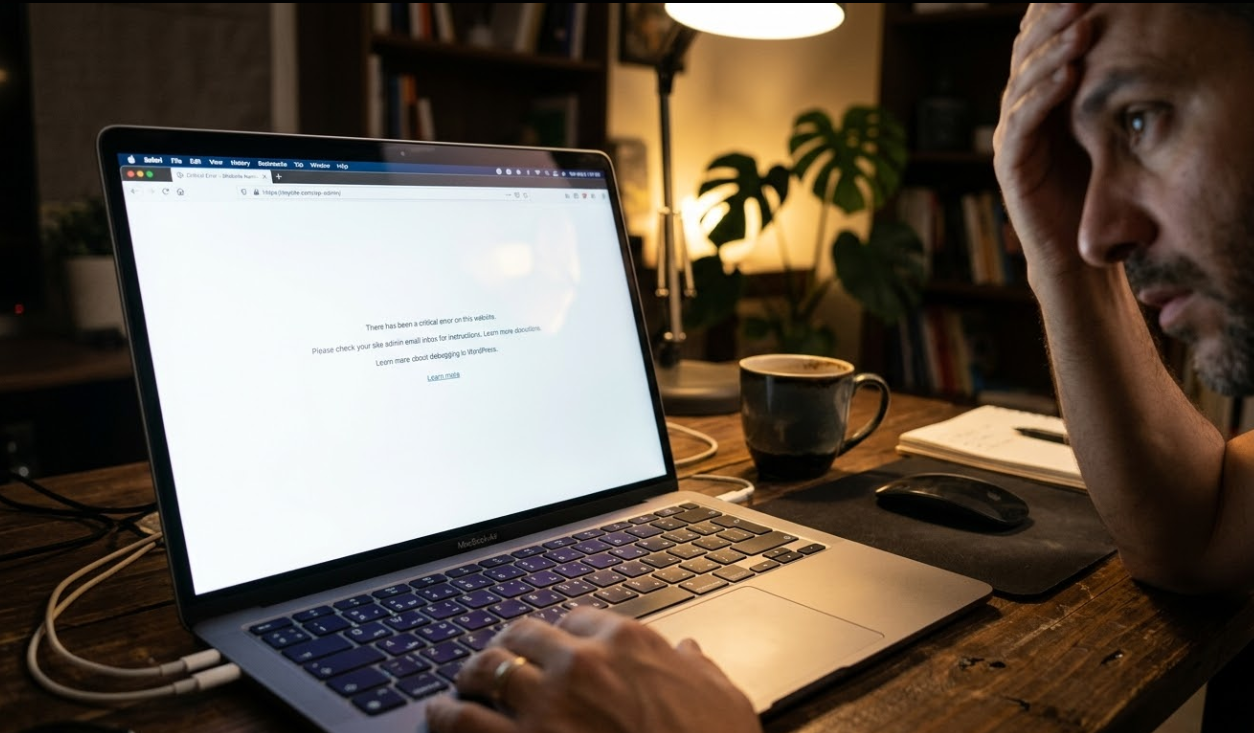
Table of Contents
What Causes the White Screen of Death?
The White Screen of Death usually happens when a script on your website exhausts the server’s resources. It can also be caused by a “conflict,” which is basically two pieces of code arguing with each other. Sometimes, a new plugin you installed doesn’t play well with your current theme. Other times, your hosting server might not have enough memory to run everything at once. It could even be a simple typo in a file or a corrupted update. Because the error stops the site from loading, WordPress often cannot tell you exactly what went wrong, leaving you with a blank page.
7 Solutions for the WordPress White Screen of Death
1. Clear Browser and Site Cache
When to use this fix
Use this as your very first step. Sometimes the website is actually fixed, but your computer is still showing you an old, broken version stored in its memory.
Step-by-step instructions
First, open your website in a different browser or use “Incognito” mode. If the site works there, the problem is just your browser cache. To fix this, go to your browser settings and select “Clear Browsing Data.” Make sure to check the box for “Cached images and files.” If you use a caching plugin like WP Rocket or W3 Total Cache, you should also log into your hosting panel and see if there is an option to “Purge All Cache.”
Why this works
Caching stores a “snapshot” of your site to make it load faster. If that snapshot was taken while the site had a temporary glitch, you will keep seeing the blank screen even after the glitch is gone. Clearing it forces the browser to look at the live, working site.
Important warnings
Clearing your cache is completely safe and will not delete any of your website content. However, your site might load a little slower the very next time you visit it while it rebuilds the cache.
2. Increase the PHP Memory Limit
When to use this fix
This is helpful if your website is trying to do too much at once. If you have many plugins or a heavy theme, your server might be “running out of breath.”
Step-by-step instructions
You will need to access your site files using an FTP tool or the “File Manager” in your hosting dashboard. Look for a file named wp-config.php in the main folder. Right-click to edit it and find the line that says “That’s all, stop editing!” Just above that line, paste this code: define('WP_MEMORY_LIMIT', '256M');. Save the file and refresh your website to see if it loads.
Why this works
PHP is the engine that runs WordPress. Like a car, it needs “fuel” (memory) to work. By adding this line of code, you are telling your server to give WordPress more room to process tasks. This often fixes the white screen instantly.
Important warnings
If your hosting plan is very basic, they might not allow you to increase the memory yourself. If this code doesn’t work, you may need to ask your hosting support to increase it for you.
3. Disable All WordPress Plugins
When to use this fix
This is the most common solution. Use this if the white screen appeared right after you updated a plugin or installed a new one.
Step-by-step instructions
If you can’t reach your dashboard, use your hosting File Manager to find the wp-content folder. Inside, you will see a folder called plugins. Rename that folder to plugins_old. This trick tells WordPress that there are no plugins to load. Now, try to visit your website. If it works, rename the folder back to plugins. Then, go into your WordPress dashboard and turn the plugins back on one by one until the site breaks again. That last plugin you turned on is the troublemaker.
Why this works
Plugins are made by many different people. Sometimes, the code in one plugin clashes with the code in another. By turning them all off, you remove the conflict. Testing them one by one helps you find the specific “bad” plugin without losing any data.
Important warnings
Your site might look a bit strange while plugins are off (for example, contact forms might disappear). Don’t worry, they will come back as soon as you turn the plugins back on.
4. Switch to a Default Theme
When to use this fix
Use this if the plugin trick didn’t work. Sometimes your current theme has an error or is not compatible with a new version of WordPress.
Step-by-step instructions
Similar to the plugin step, go to your File Manager and open the wp-content folder. Find the themes folder. Find your currently active theme’s folder and rename it (for example, my-theme-old). WordPress will realize your theme is “missing” and will automatically try to use a default theme like “Twenty Twenty-Four.” If your site comes back to life, then the problem was inside your original theme files.
Why this works
WordPress requires a theme to display your content. If your main theme is broken, it results in a blank screen. Forcing WordPress to use a standard, simple theme helps determine if the issue is with your custom design or the website core itself.
Important warnings
When you switch to a default theme, your site’s design will change completely. This is temporary. Once you fix the code in your main theme, you can switch back and your design will return to normal.
5. Enable WordPress Debug Mode
When to use this fix
Use this when you want WordPress to tell you exactly what is wrong. This is like a “diagnostic mode” for your website.
Step-by-step instructions
Open your wp-config.php file again using your File Manager. Look for a line that says define( 'WP_DEBUG', false );. Change the word false to true. Save the file and refresh your broken website. Instead of a white screen, you will now see lines of text. Look for words like “Fatal error” or “Parse error.” These messages usually tell you exactly which file and which line of code is causing the problem.
Why this works
By default, WordPress hides errors so visitors don’t see technical mess. Debug mode turns these messages back on. It acts as a map that points you directly to the source of the White Screen of Death.
Important warnings
Once you find the error and fix it, remember to change the code back to false. You don’t want regular visitors to see technical error messages on your live site.
6. Check File Permissions
When to use this fix
This is useful if you recently moved your website to a new host. It helps if the server is “refusing” to read certain important files.
Step-by-step instructions
Log into your hosting File Manager and look at the “Permissions” column next to your files. Most folders should be set to 755 and most files should be set to 644. Your wp-config.php file is extra sensitive and is often set to 440 or 600. If you see numbers like 777, this can cause security blocks that lead to a white screen. You can right-click any file or folder to change these numbers.
Why this works
Servers have strict rules about who can “read” or “write” to a file. If the rules are too strict, WordPress can’t load the files it needs. If the rules are too loose, the server might block the site for security reasons. Correcting these numbers restores the balance.
Important warnings
Be careful not to set everything to 777. This makes your site very easy for hackers to enter. Always stick to the standard numbers recommended by WordPress.org documentation.
7. Re-upload Core WordPress Files
When to use this fix
Use this as a last resort. If your site was interrupted during an update, some of the main WordPress files might be missing or corrupted.
Step-by-step instructions
Go to WordPress.org and download a fresh copy of WordPress. Unzip it on your computer. Delete the wp-content folder and the wp-config-sample.php file from that new download—you don’t want to overwrite your own content! Then, use FTP to upload all the other fresh files and folders to your server. This will replace the “core” files with healthy, new ones without touching your photos or posts.
Why this works
Sometimes a file gets “broken” during a transfer or an update. Replacing the core files is like giving your website a fresh brain transplant. It keeps your memories (data) but gives you a clean, working system to run them.
Important warnings
Always make sure you have a full backup before doing this. If you accidentally overwrite your wp-content folder, you could lose your images and themes.
What If None of These Fixes Work?
If you have tried all seven steps and still see a blank screen, don’t worry. Sometimes the issue is on the server side, meaning only your hosting provider can fix it. Reach out to their support team and tell them the steps you have already taken. They can check the server logs to see if there is a deeper hardware or software issue. If the problem is related to custom code or a complex database error, it might be time to call in a specialist who handles these situations every day.
How 79mplus Can Help
At 79mplus, we understand how stressful a broken website can be for your business. Troubleshooting can be time-consuming, and sometimes you need a partner to handle the technical heavy lifting while you focus on your work.
We offer professional support for serious WordPress challenges, including:
-
Emergency Site Recovery: We can quickly bring your site back from the White Screen of Death.
-
Advanced Troubleshooting: We find and fix deep-seated plugin and theme conflicts.
-
Custom Backend Development: We build stable, high-performance systems that prevent errors before they happen.
-
Malware Cleanup: If an error is caused by a security breach, we clean and harden your site.
-
Theme and Plugin Debugging: We fix broken code in your favorite tools.
Whether you need a one-time fix or ongoing WordPress security best practices implementation, we are here to be your reliable technical partner.
FAQ
Does the White Screen of Death delete my website content?
No. In almost every case, your posts, pages, and images are safely stored in your database. The white screen is just a display error that prevents your site from showing that content.
Can plugins cause the white screen error?
Yes, this is the most common cause. If a plugin has a bug or isn’t compatible with your version of WordPress, it can stop the entire site from loading.
Is the White Screen of Death a security issue?
Not usually. Most of the time, it is caused by a technical conflict or a resource limit. However, if you haven’t made any changes and the screen suddenly appears, it is always a good idea to run a security scan.
Conclusion
The WordPress White Screen of Death is a common hurdle, but as you have seen, it is very fixable. By staying calm and working through these seven solutions, most site owners can resolve the issue on their own. Remember to always keep a recent backup of your site and perform regular maintenance to keep things running smoothly. If you ever feel overwhelmed or run into a problem that feels too complex, don’t hesitate to reach out to a professional. The team at 79mplus is always ready to handle complex WordPress issues and custom fixes so you can get back to business with confidence.