
Well, we’ve all been there. We have a code at hand from a blog, documentation or knowledge base, but totally clueless on how to test it without ruining existing setup. It says to test on theme functions.php, but client will not be happy if you modify any files. Fear not, let me show a non-destructive way of testing code quickly, in any WordPress installation, without touching anything.
Table of Contents
Plugins are the way to go
Plugins are a blessing for WordPress developers. They are easy to install, maintain, update and even deactivate if necessary. The code is completely separate from the installation and you can ditch it anytime you want. That’s a great thing we are targetting here – easy to install, yet easy to remove when done.
If you find a small code snippet, an action or filter that you want to test quickly, then you can cook up a tiny test plugin, put the code there and test. The best thing is when you are done, you can delete the file or deactivate it. The setup will be like it was before (assuming you did not change anything in the system with your test piece of code).
Of course, you can test the code on a theme functions.php. But you will have to revert back to the original version if your code fails – not a good thing if you are in a hurry. Bad indeed.
Smallest plugin code
In order to show up on the plugin list, you just need a file like this below in your wp-contents/plugins directory:
<?php
/*
Plugin Name: My Test
*/
Save it on anything you like, for example, test.php. You can also put it inside a folder, but not needed for a small, one time use test plugin.
It will show up in the WP Admin – Plugins screen like this:
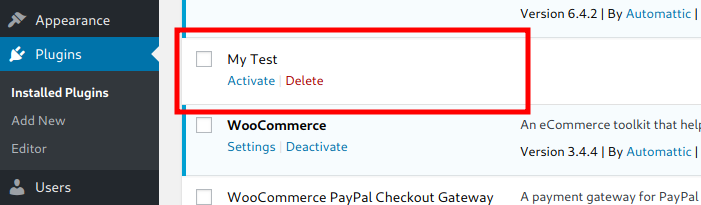
Just Activate the plugin and it will run on all WordPress pages, frontend and backend, so easy!
Example test plugin
<?php
/*
Plugin Name: Test Message
*/

add_action( 'admin_notices', 'print_message_on_backend' );
function print_message_on_backend() {
// Just a test message to show on WP Admin
echo "<p>Some test message which shows this on every admin page</p>";
}

add_action( 'wp_footer', 'print_message_on_frontend' );
function print_message_on_frontend() {
// Just a test message to show on footer (on frontend)
echo '<p>Some test message to show on footer</p>';
}
Save it in a .php file inside wp-contents/plugins, then check WP Admin – Plugins. Activate the new plugin named “Test Message”. After you activate the plugin, you will see that the code you entered on your new test plugin works. You will see the message in the code on every WP Admin page you visit.
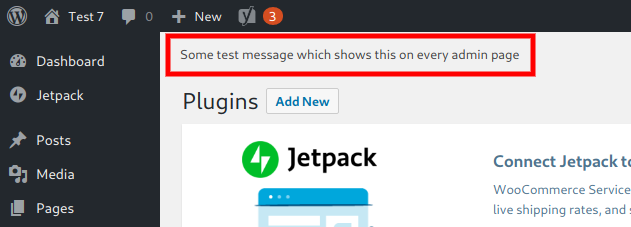
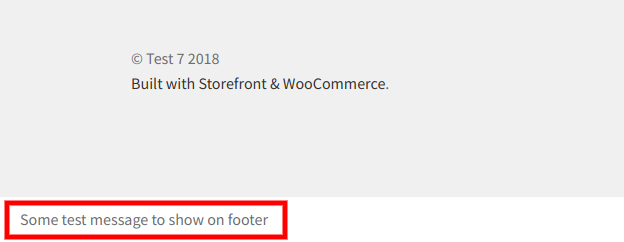
This was just some test code. You can try as many things as you want. But if you are manipulating any data, it is always a better idea to keep backup, even if you are using a test plugin.
So it is possible! Testing a code in 2 minutes. The best part is – it is not touching any file in the install and you can easily remove the plugin when you are done with it.
If you need any help regarding custom plugins or any queries regarding this article feel free to contact us.